Group Options Visually

You can group options visually by using a specific structure on option labels. This guide explains how to use that structure, how to enable grouping, and how to provide a prompt for AI so that it generates options that are set up for grouping.
Steps: 8
StepHopper
1

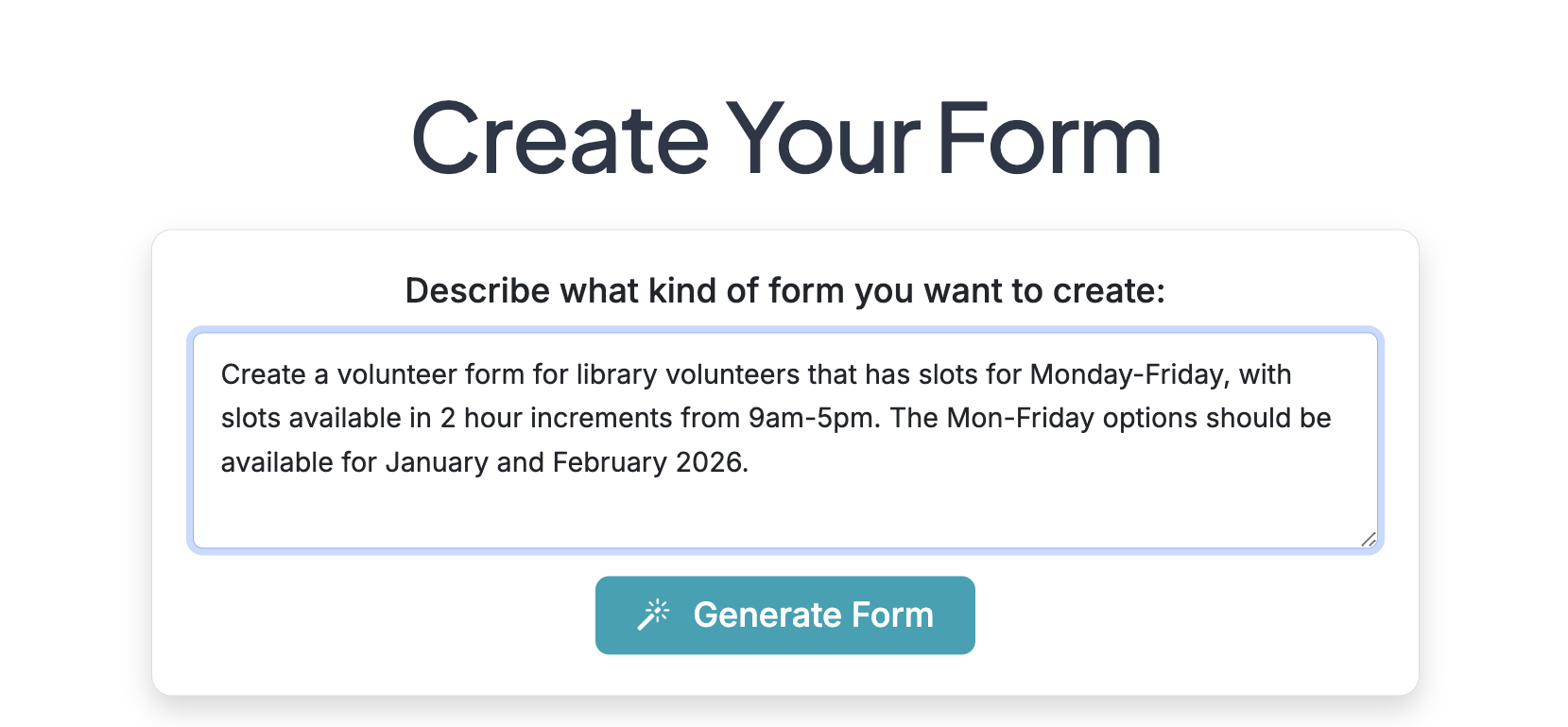
To create a form that includes a large number of dates/times or other options, provide a detailed description when you are creating your form. The AI generation can recognize many patterns and generate options with grouping enabled to create your form and organize it in a manageable way for respondents.
2

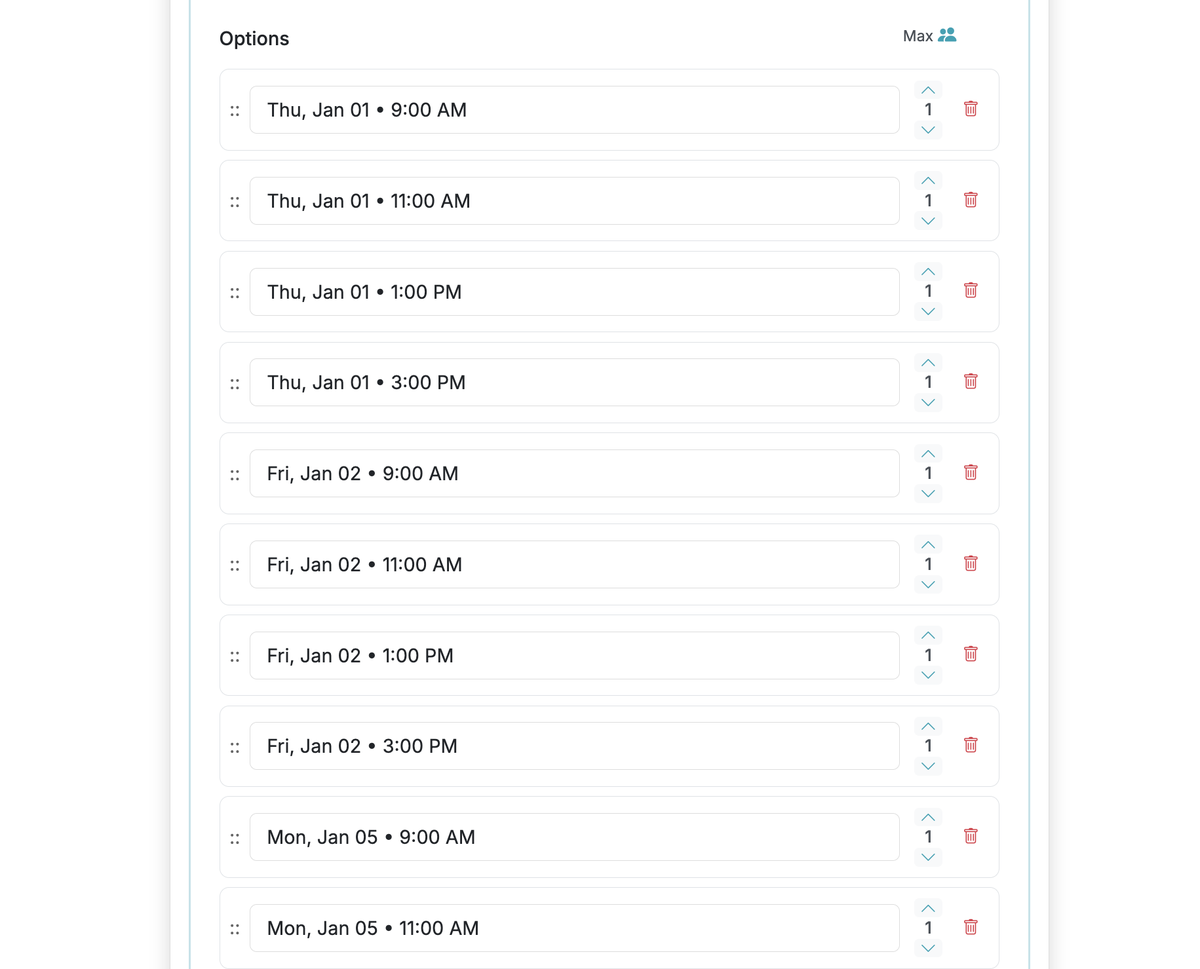
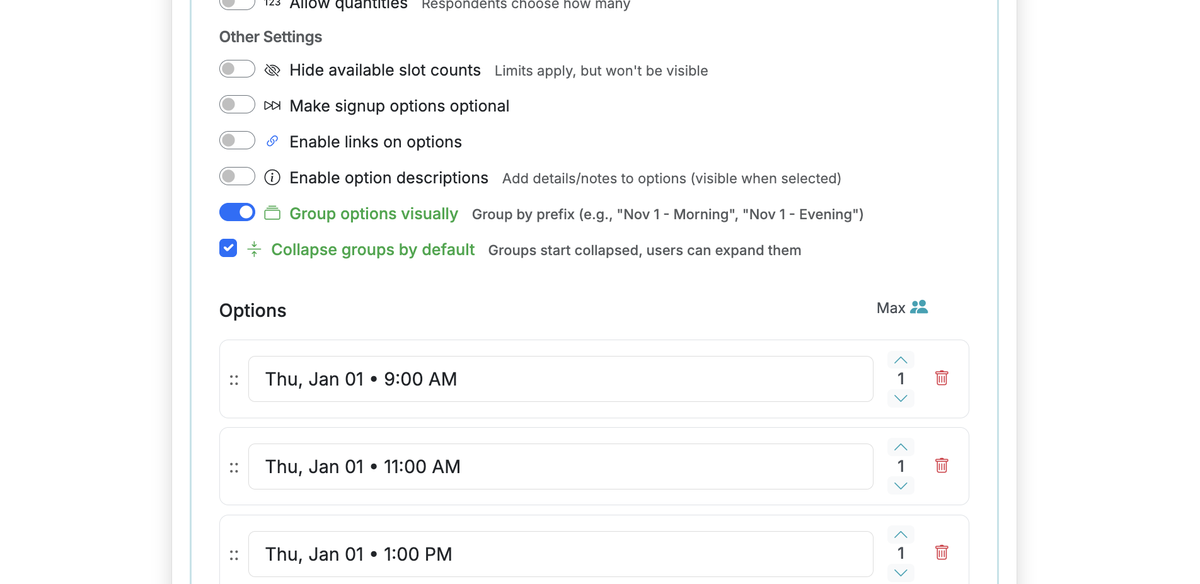
When the AI generates a form with a large number of options that can be grouped, it will automatically turn on 'Group options visually' and 'Collapse groups by default'. It will also setup the option labels in a way they can be grouped. The labels will include a prefix, followed by a space then a dash or bullet, then a suffix, like: "Thu, Jan 01 • 11:00 AM". This allows similar items to be grouped.

3

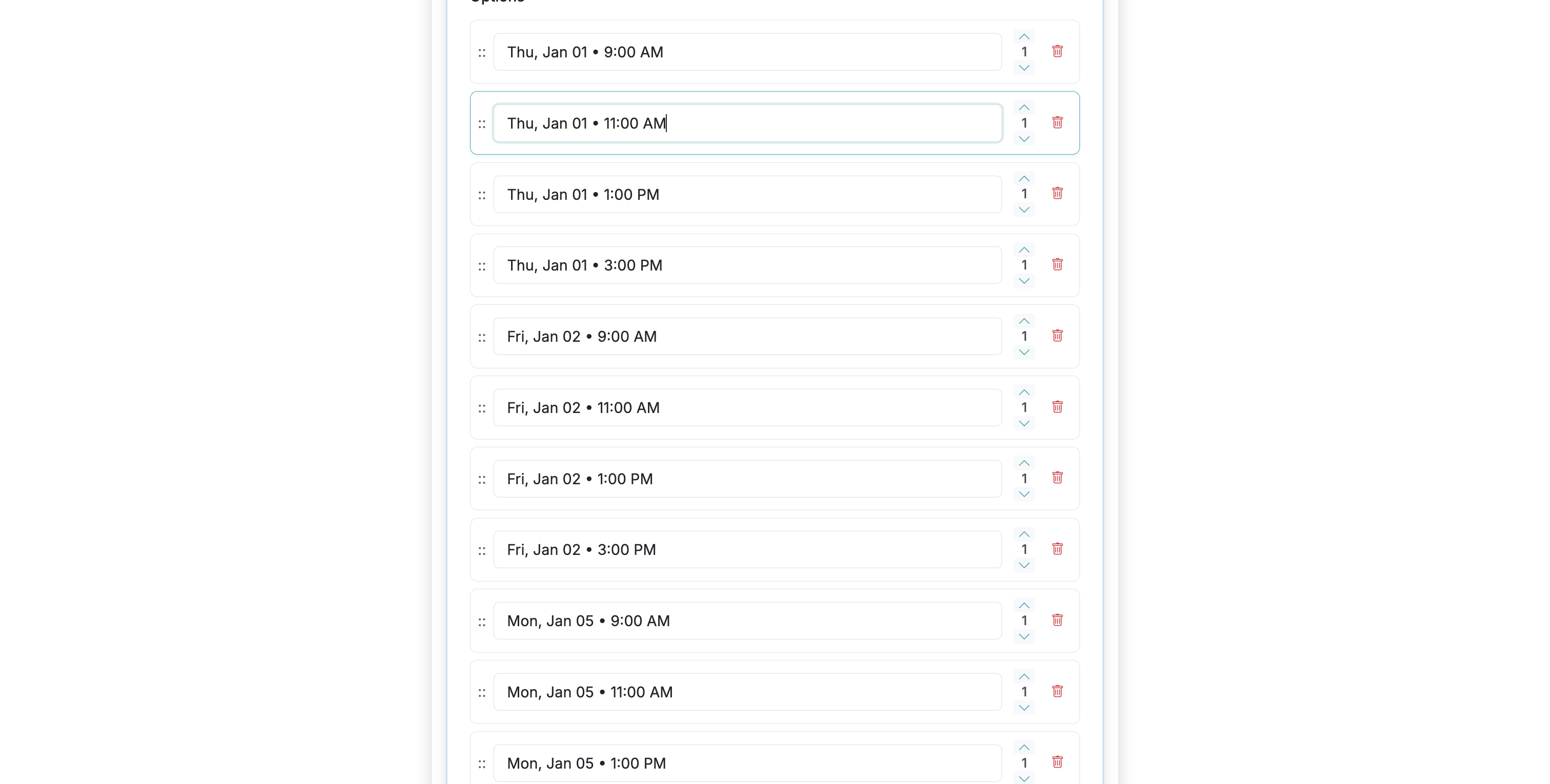
Grouping will ONLY work if you use a syntax that includes similar prefixes and then a separator that is " • " or " - ". See the next step for an example that includes a prefix and separator followed by a suffix that can be grouped.

4

This is an example of option labels that have a prefix, separator, and suffix that will work with grouping. Options with the same prefix can be grouped so they appear as an expandable option on the response page shared with form respondents.

5

Scroll page

6

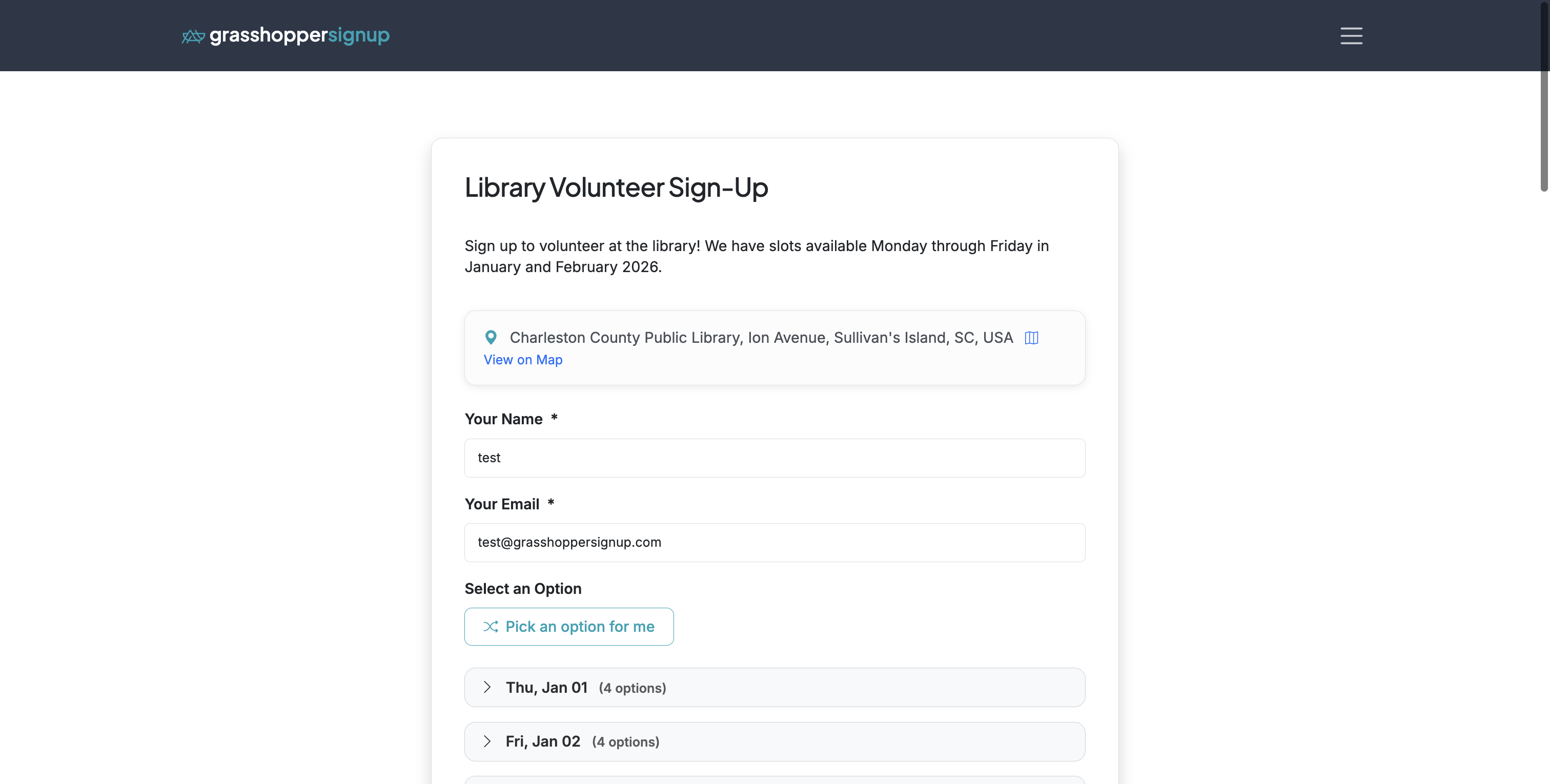
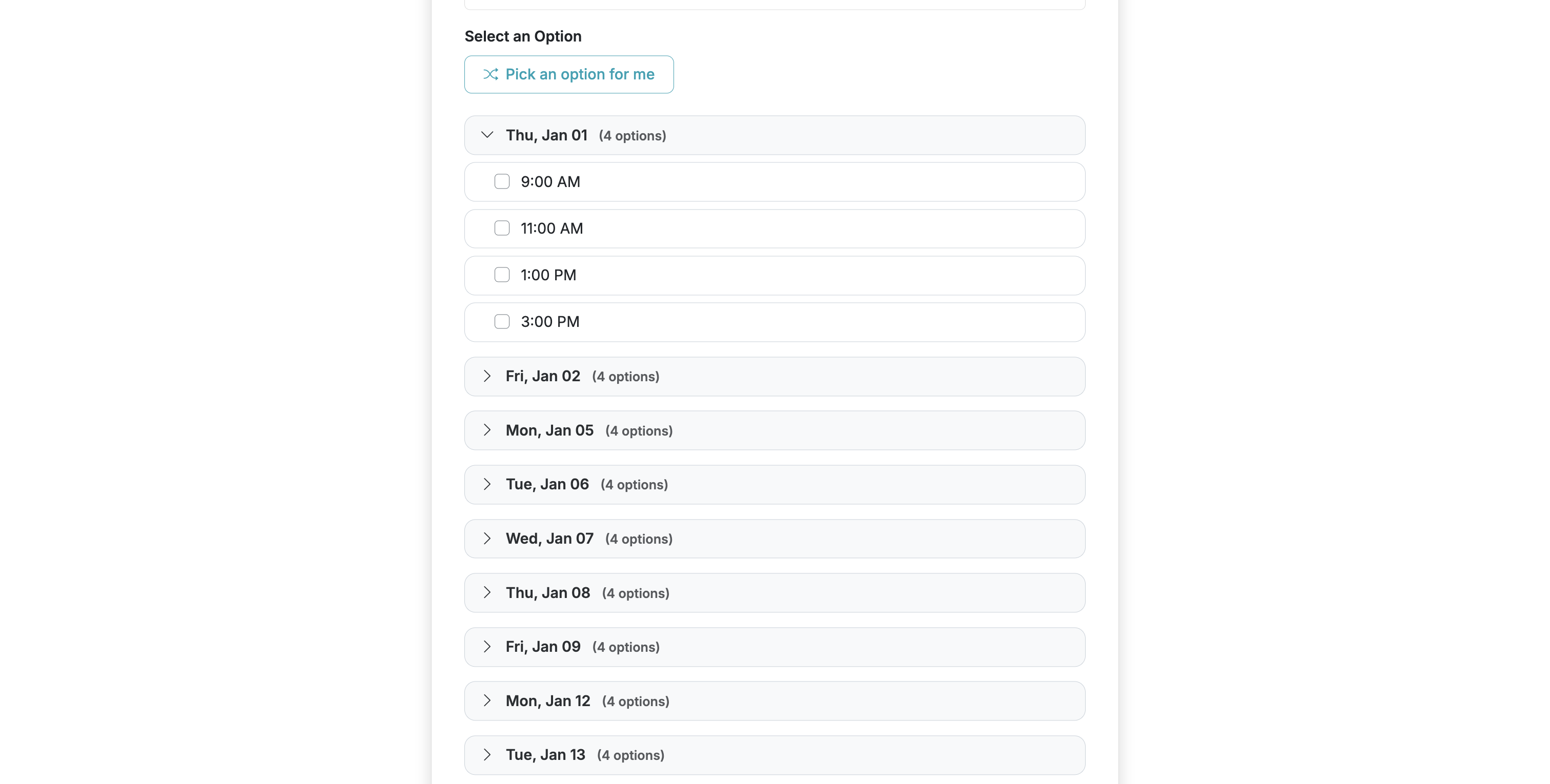
When grouping is enabled, your shareable form page will group similar options using the prefix.

7

Grouping can provide a very helpful way for respondents to navigate a form that has a large number of available options.

8

You can view a form with grouping enabled here: https://grasshoppersignup.com/respond/c32e5c62-f1c8-4c2e-a10b-55dfeaa7cf4d

Made with

stephopper stephopper

a product of Grasshopper Signup

Create interactive step-by-step guides