READ this entire guide. There are multiple REQUIRED steps for successful SMS reminders. SMS reminders are only available for US phone numbers and require a Premium + Boost plan.
SETTING UP YOUR FORM TO COLLECT PHONE NUMBERS FOR SMS REMINDERS
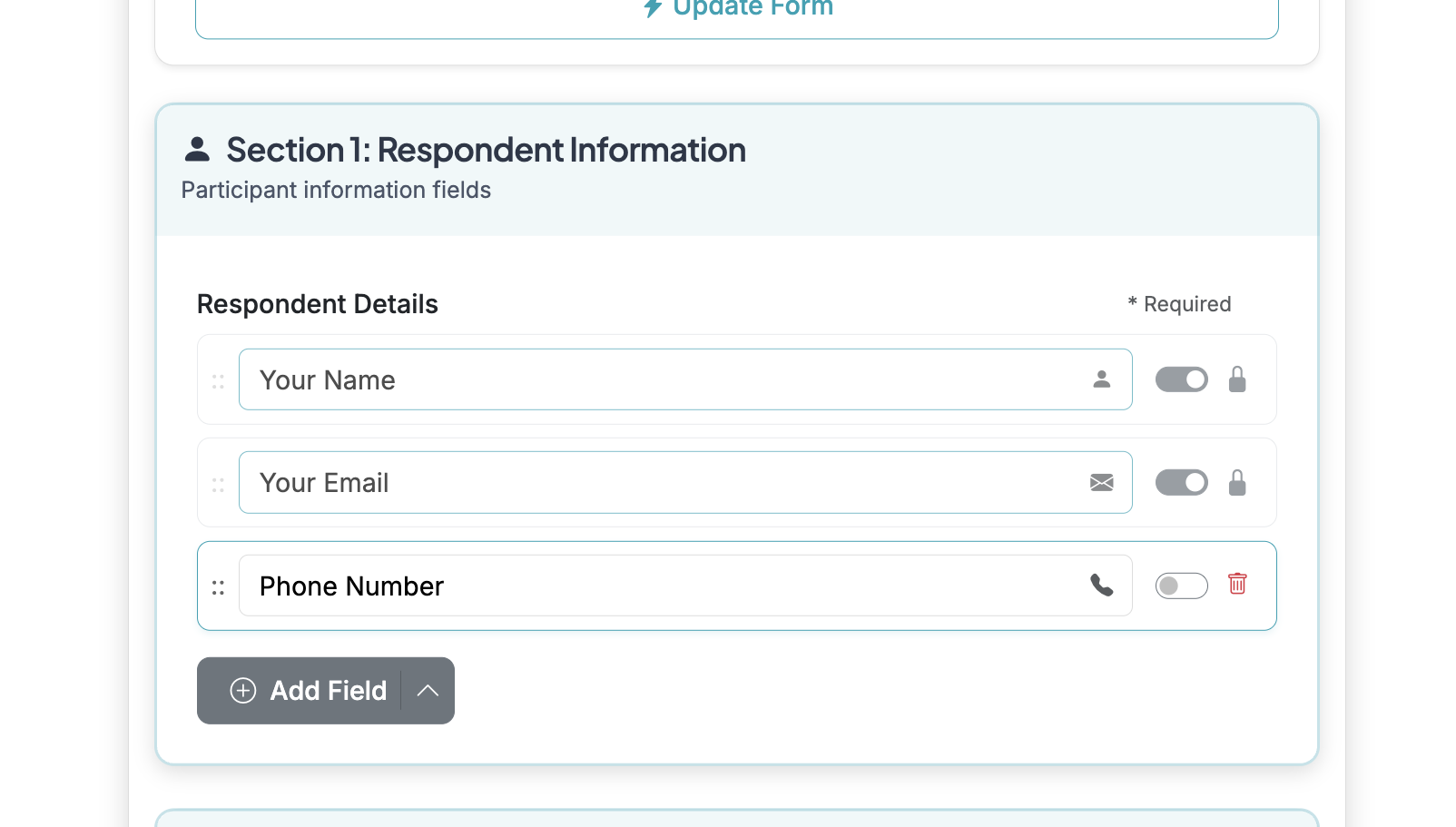
Your form MUST include the dedicated Phone field in order to collect a phone number that our SMS reminder function can access.
1
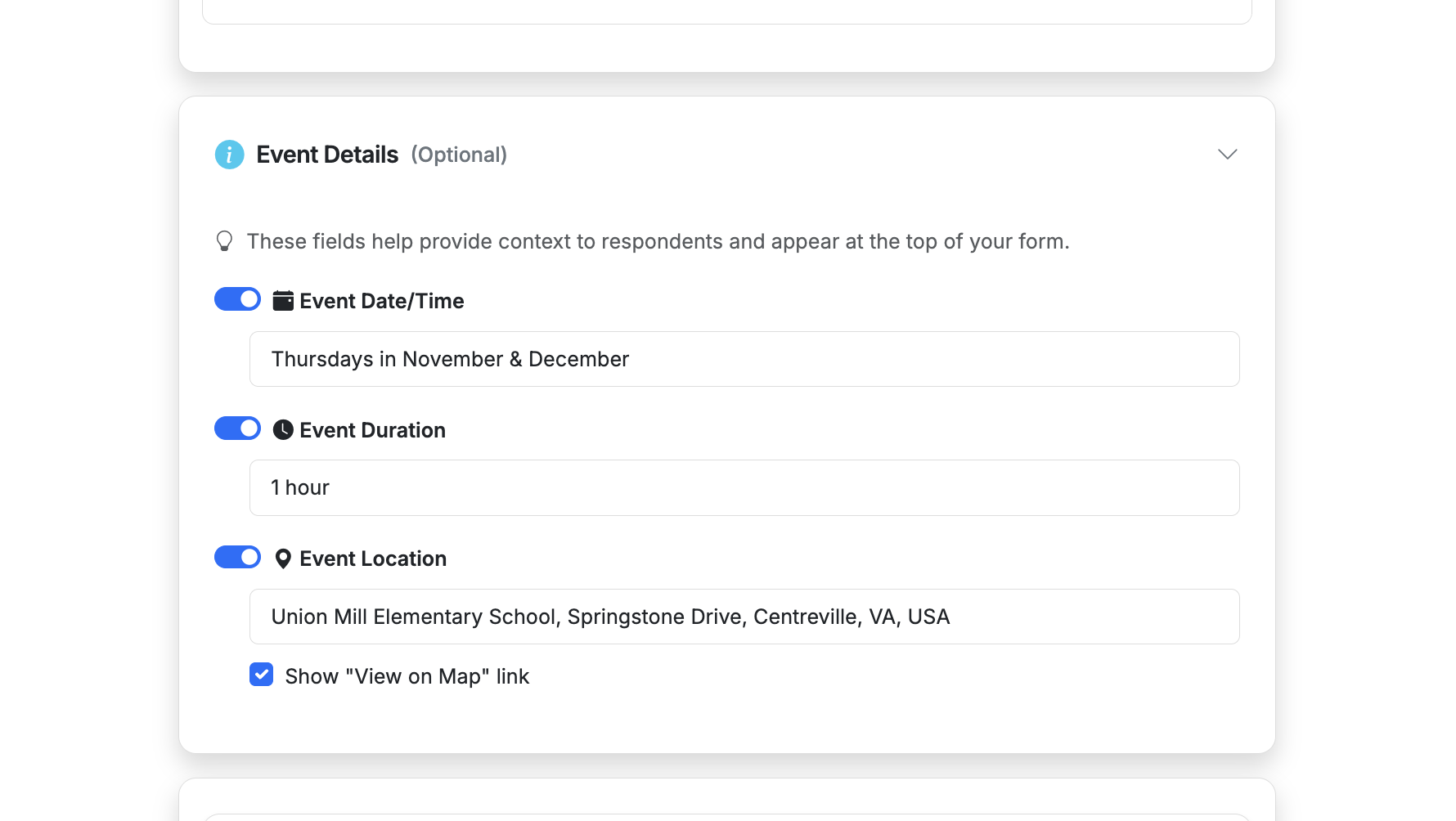
Start by setting up your form. When using reminders, make sure dates and times are clear.
2
You can use the Event Date/Time detail field to help provide clarity on the date and time of events. This information is used by AI for reminder setup and included in respondent confirmation emails.
3
REQUIRED: To send SMS reminders your form MUST use the validated PHONE field. To add a phone number field, expand the Add Field menu and select the phone icon.
4
Using the dedicated Phone field will add a field that shows you it is specifically for Phone numbers. This field will validate numbers added by respondents and display a consent checkbox when reminders are enabled.
5
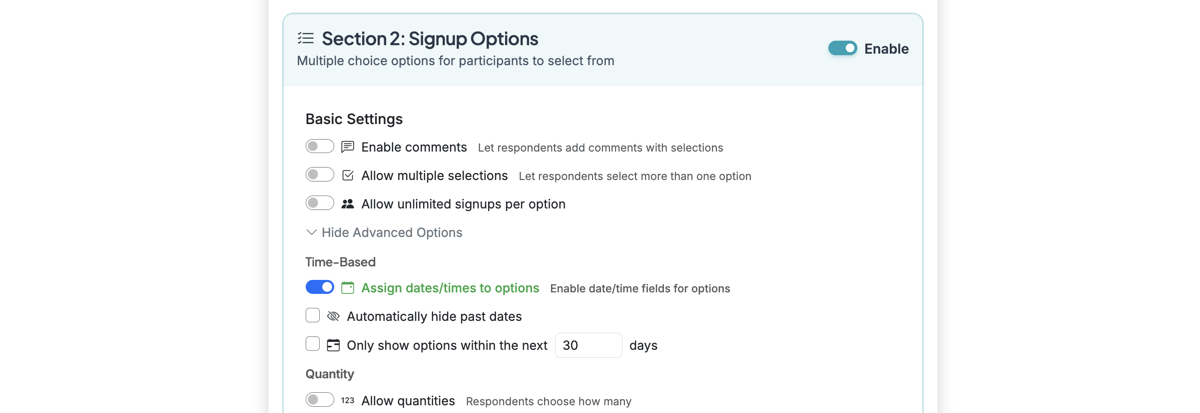
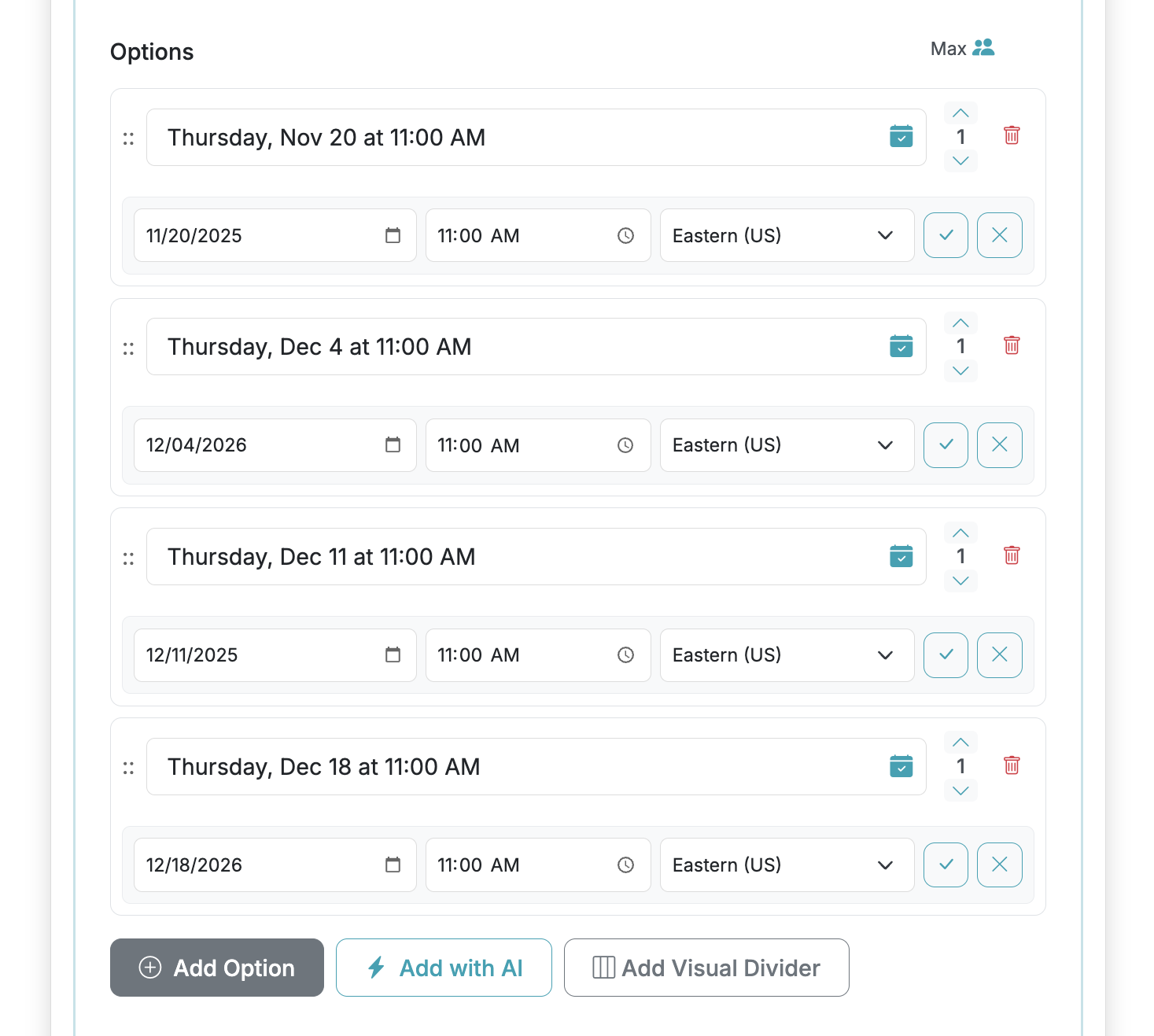
While not required, assigning dates/times to each option label can enable additional time/date features and make AI reminder suggestions more accurate.
6
Clear labels with times/dates are highly recommended for respondent clarity and reminder generation. Enabling dates/times will allow AI to store a time/date with each option that you can adjust as needed. NOTE: configuring dates/times is NOT required since you can also specify event times on the Reminder setup.
CREATING SMS REMINDERS
SMS reminders MUST be enabled before collecting responses so the SMS opt in can be enabled. SMS reminders require a Premium + Boost plan.
1
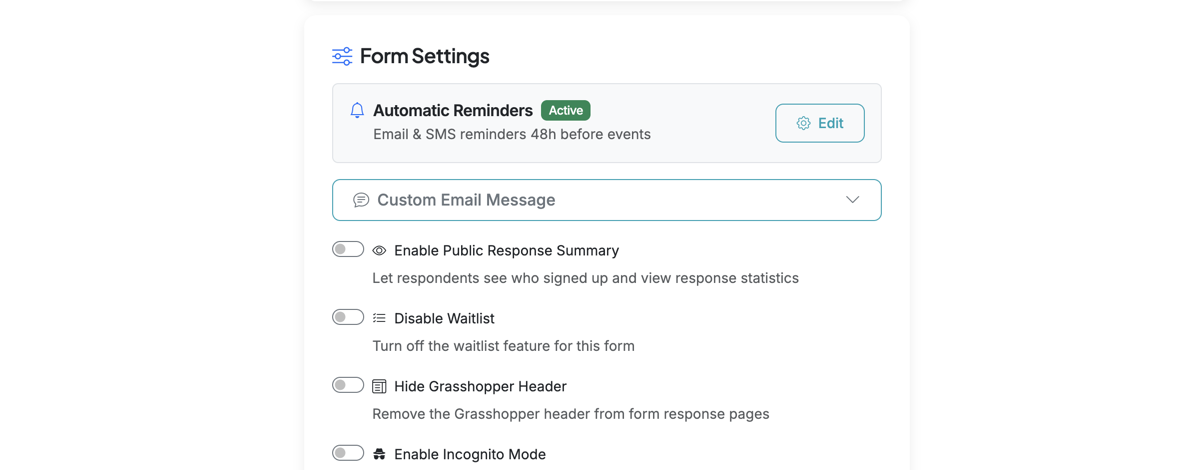
On your Form Options page, go to 'Edit' to setup Automatic Reminders.
2
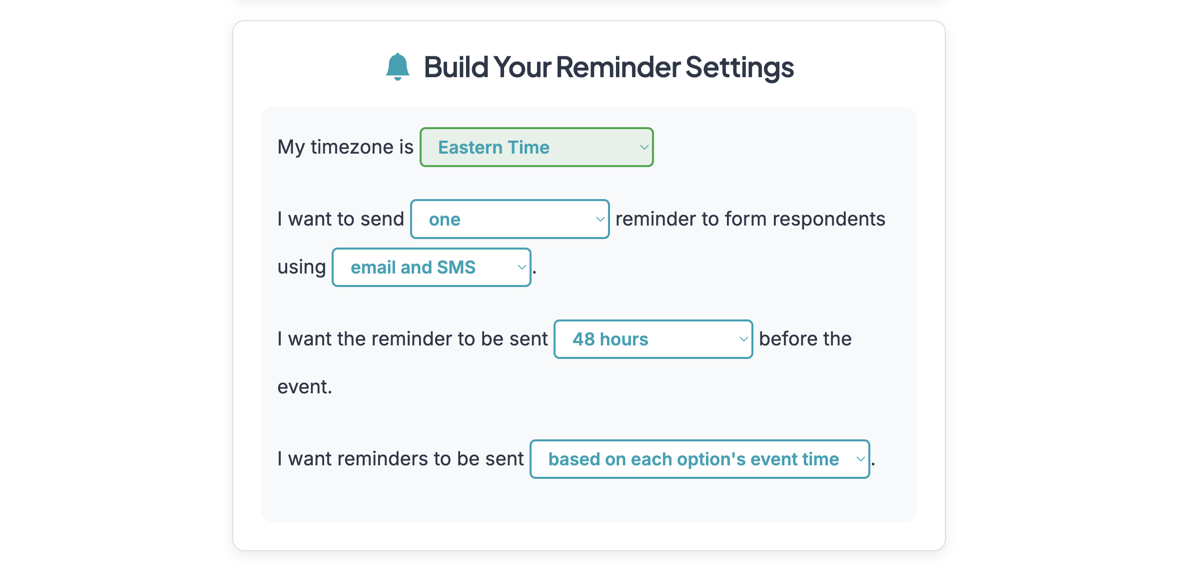
When you setup reminders, go through each step to make selections. Choose 'email and SMS' (recommended) or 'SMS' to include SMS in your reminders.
3
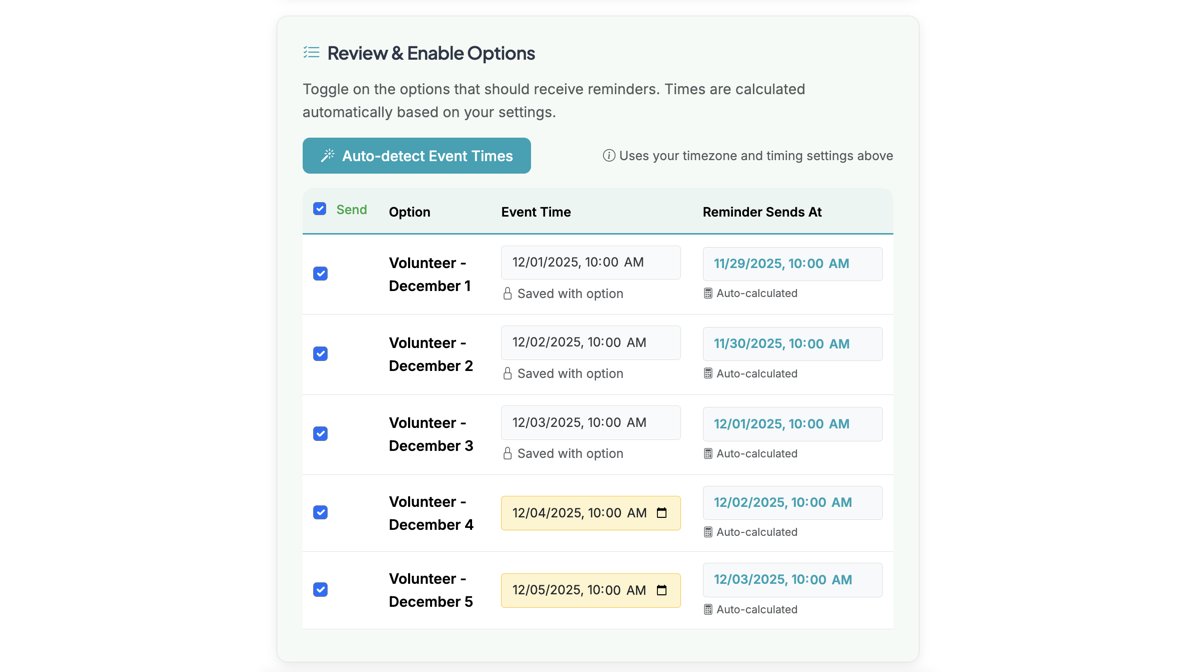
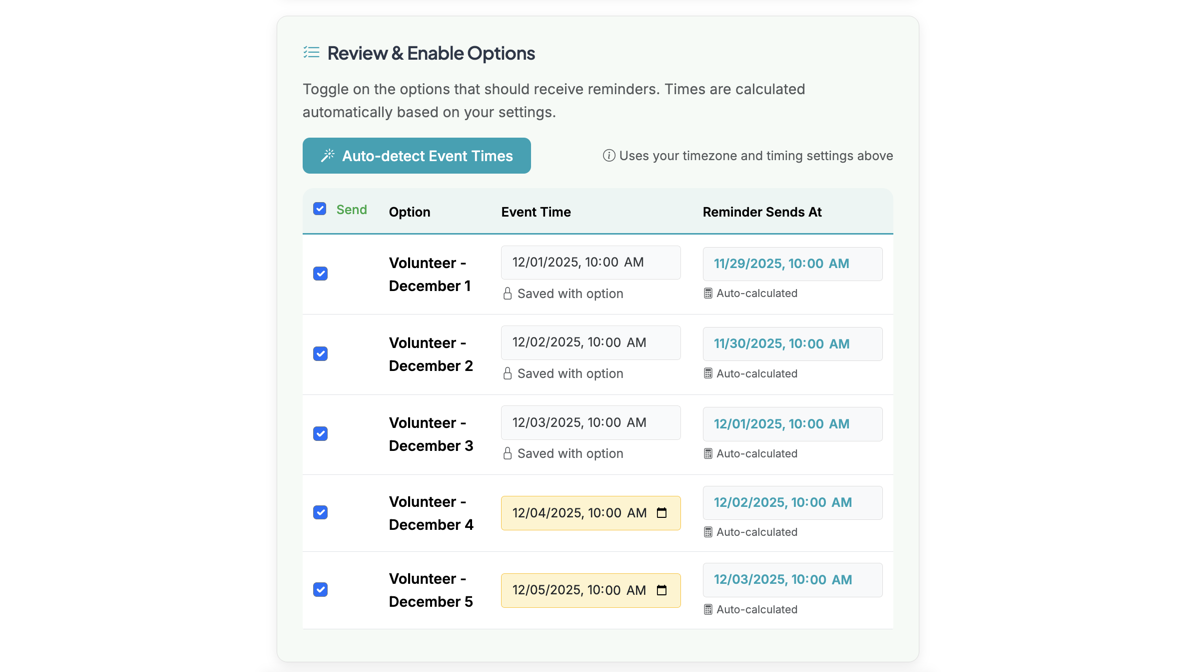
First: Make sure to check all options if you want reminders sent for all options. You can disable or enable options as needed. Reminders will only be sent to options that are checked.
4
Second: Ensure EVENT TIME is correct for each option. The 'Reminder Sends At' is auto-calculated based on the Reminder Settings you configured in step 2 above. IF you used dates/times when setting up your form, the event times will be locked (edit the form to change them). If you did not use dates/times in the form, you can set them manually or use AI to help try and parse them first.
5
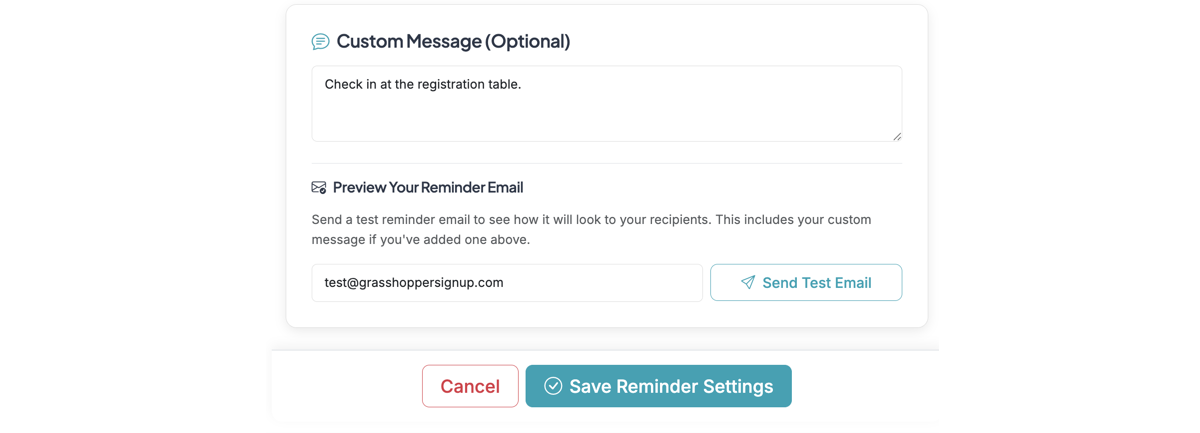
You can add a custom message that will be included with email reminders. You can also send a test email to see an example reminder. MAKE SURE to Save Reminders when you have everything configured.
RESPONDENT EXPERIENCE EXAMPLE
These steps show what a respondent will see on a form with the correct Phone number field and SMS Reminders enabled.
1
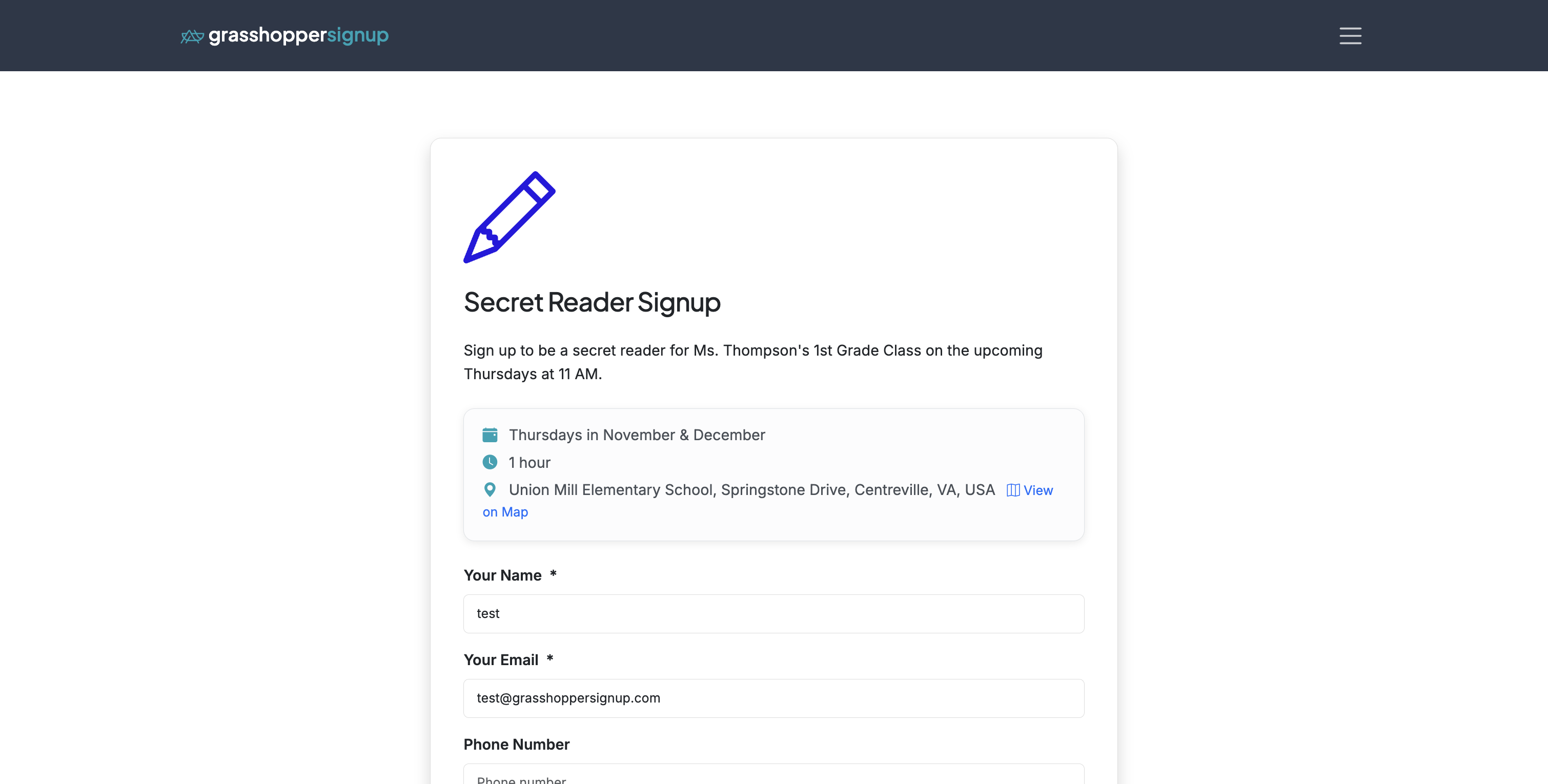
Respondents will visit your form.
2
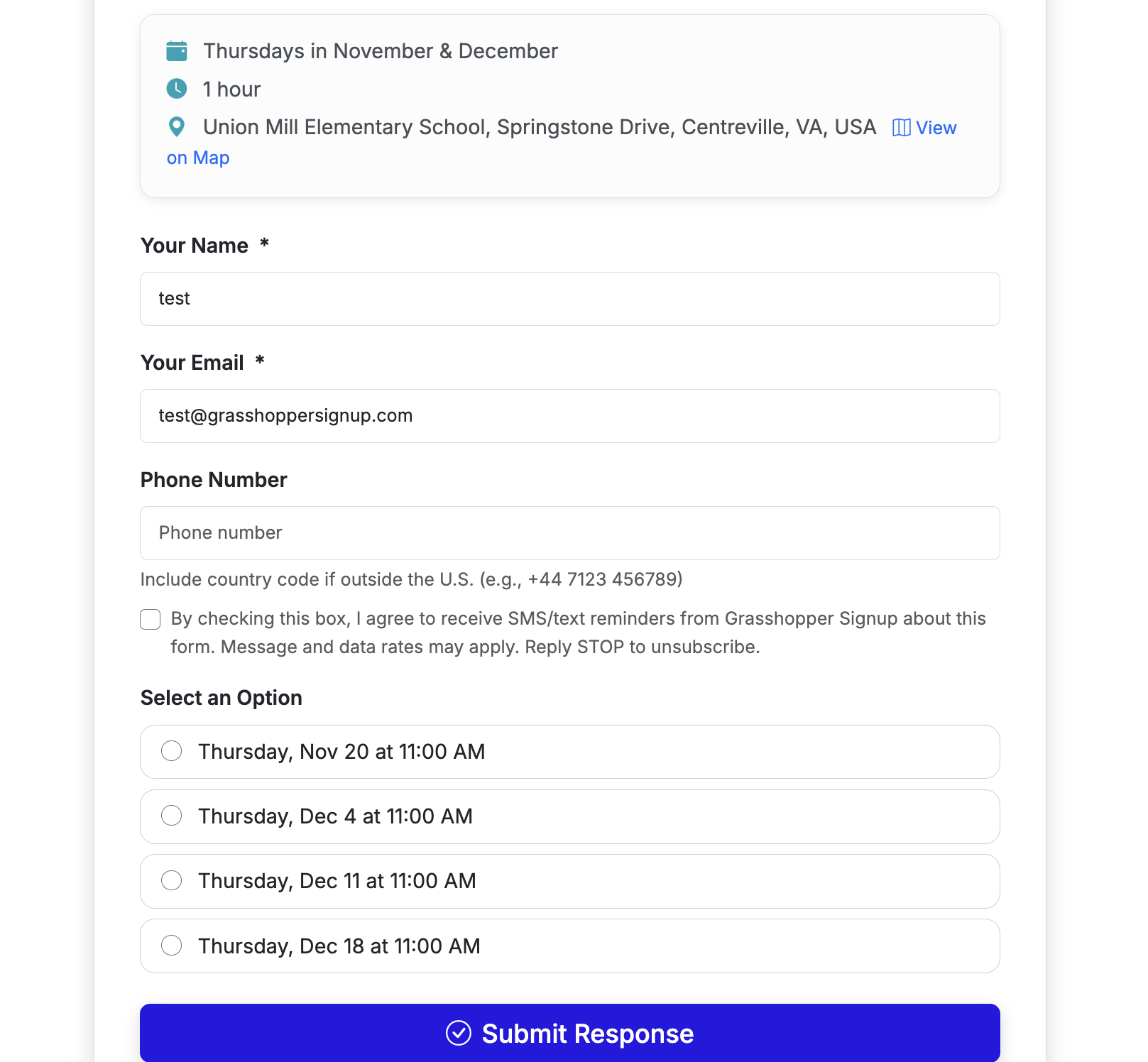
The Phone Number field will validate and store phone numbers for use with SMS. When SMS Reminders are enabled, an Opt In checkbox will appear under the phone number field (automatically). This opt in is required for Grasshopper Signup to send SMS reminders.
3
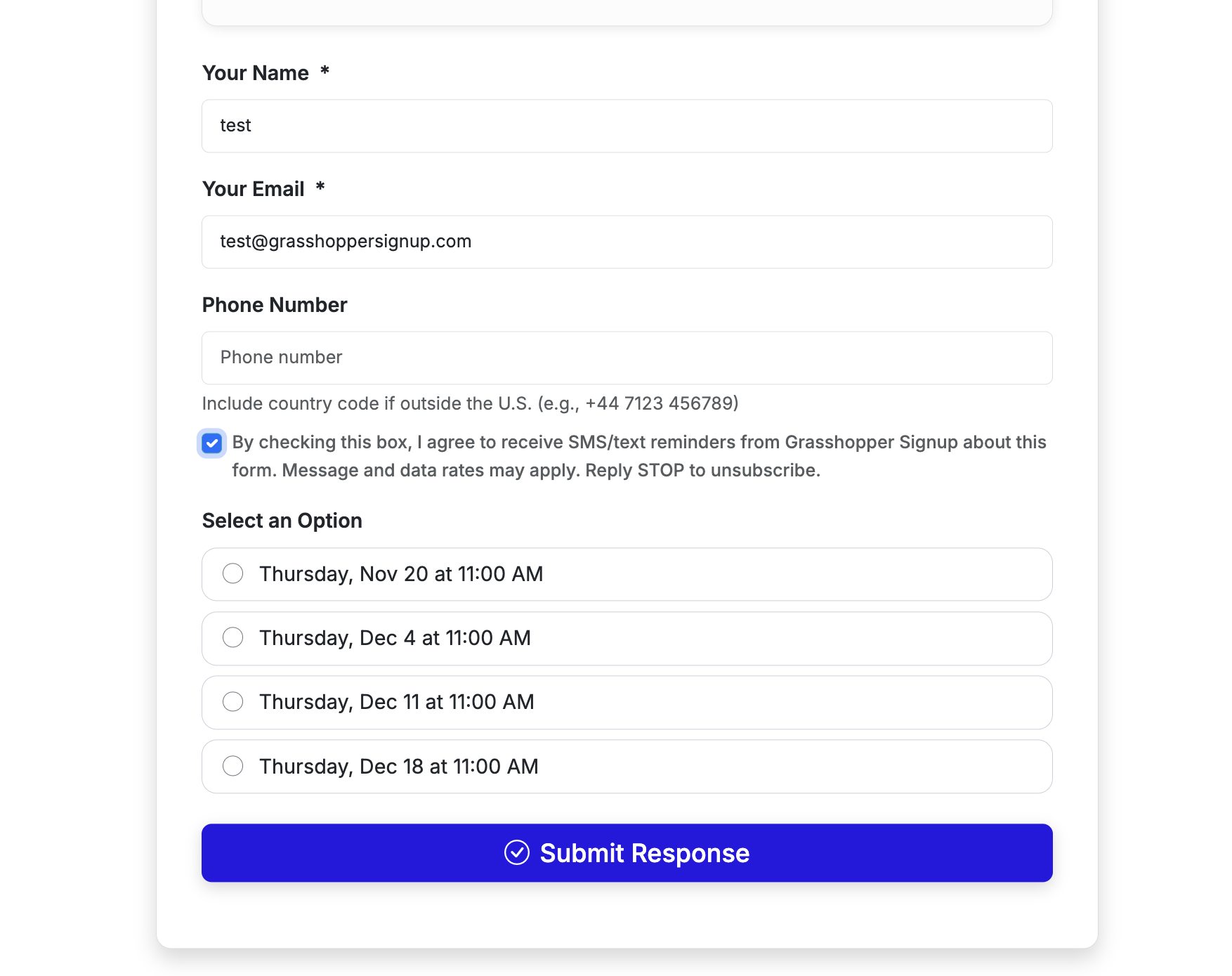
Respondent must check this opt in box to receive SMS reminders. Not all respondents will opt in, which is why we also recommend using email reminders.