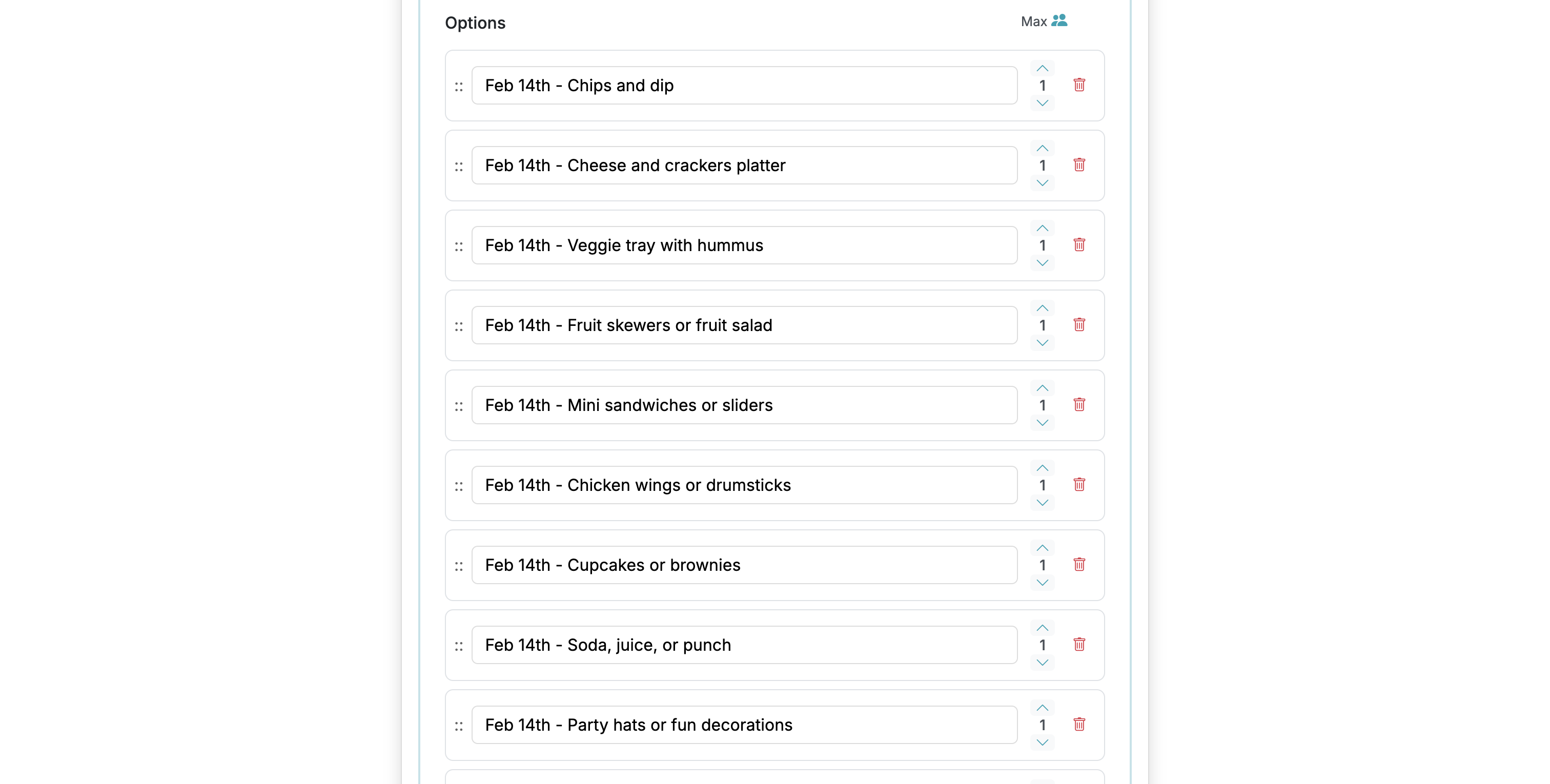
Use Add with AI to add additional options to your form.
1
Start on the Edit page for your form.
2
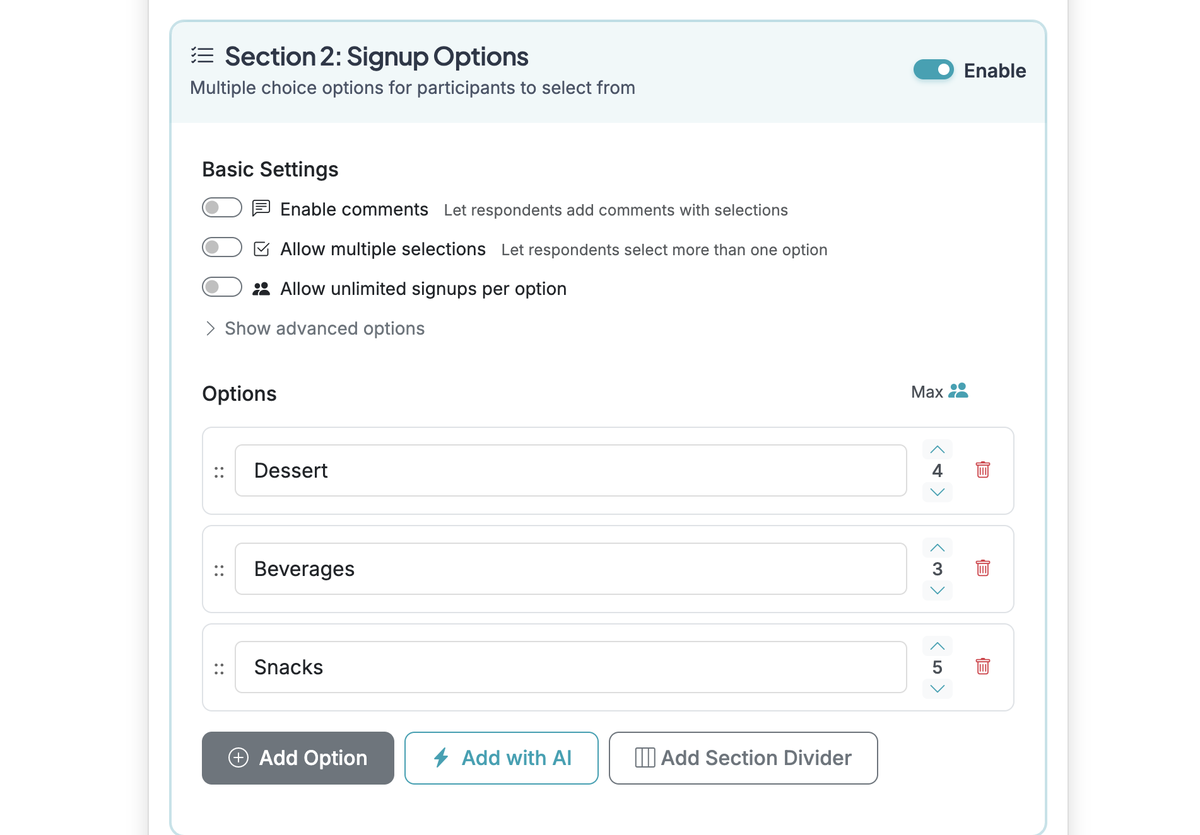
Scroll down to Signup Options and click 'Add with AI'
3
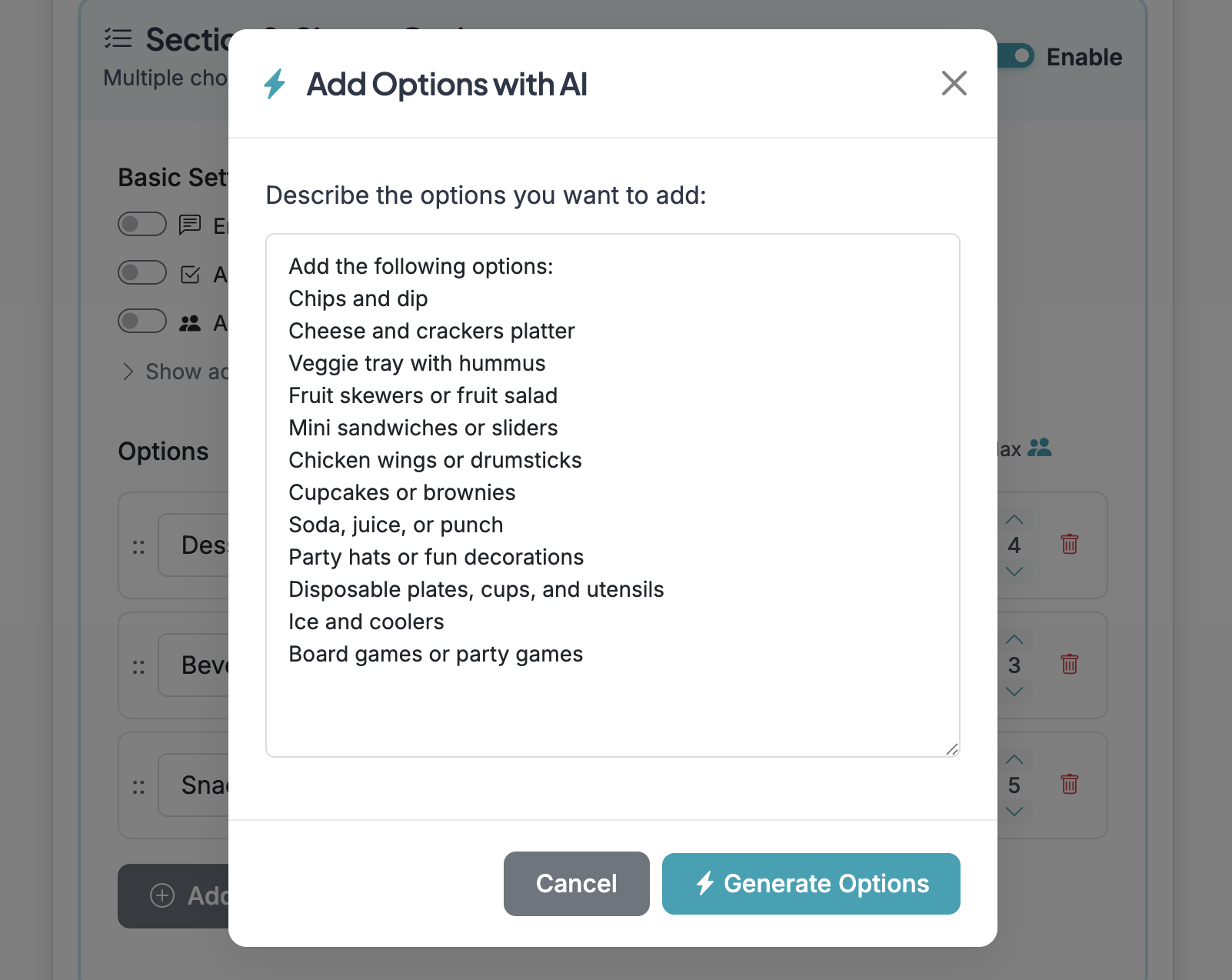
Type or paste in the options you want to add. You can try to add a very long list, but you may need to break the list up into multiple parts if the AI has timeout issues and is unable to add all options at once.
4
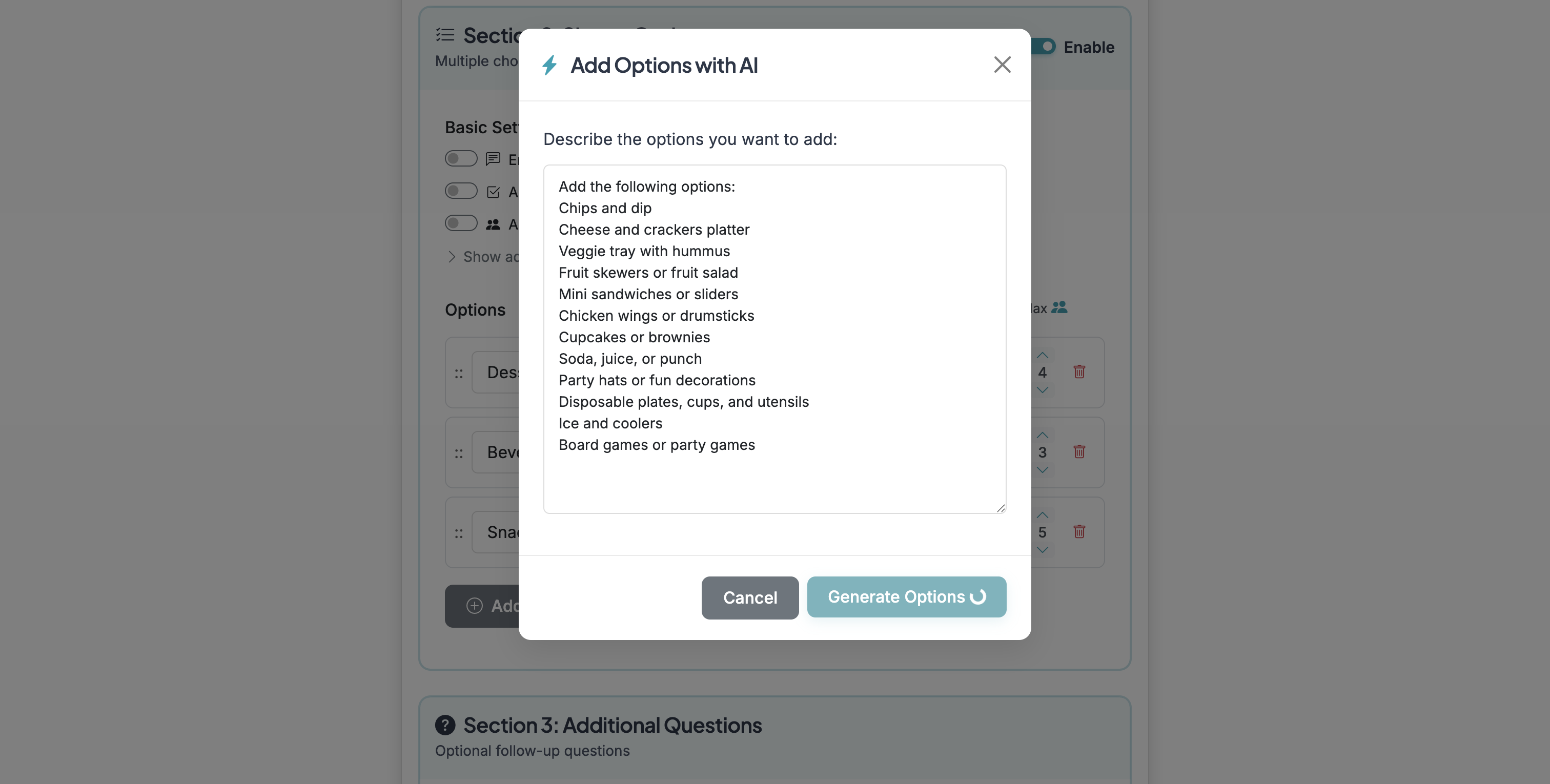
Click on 'Generate Options'
5
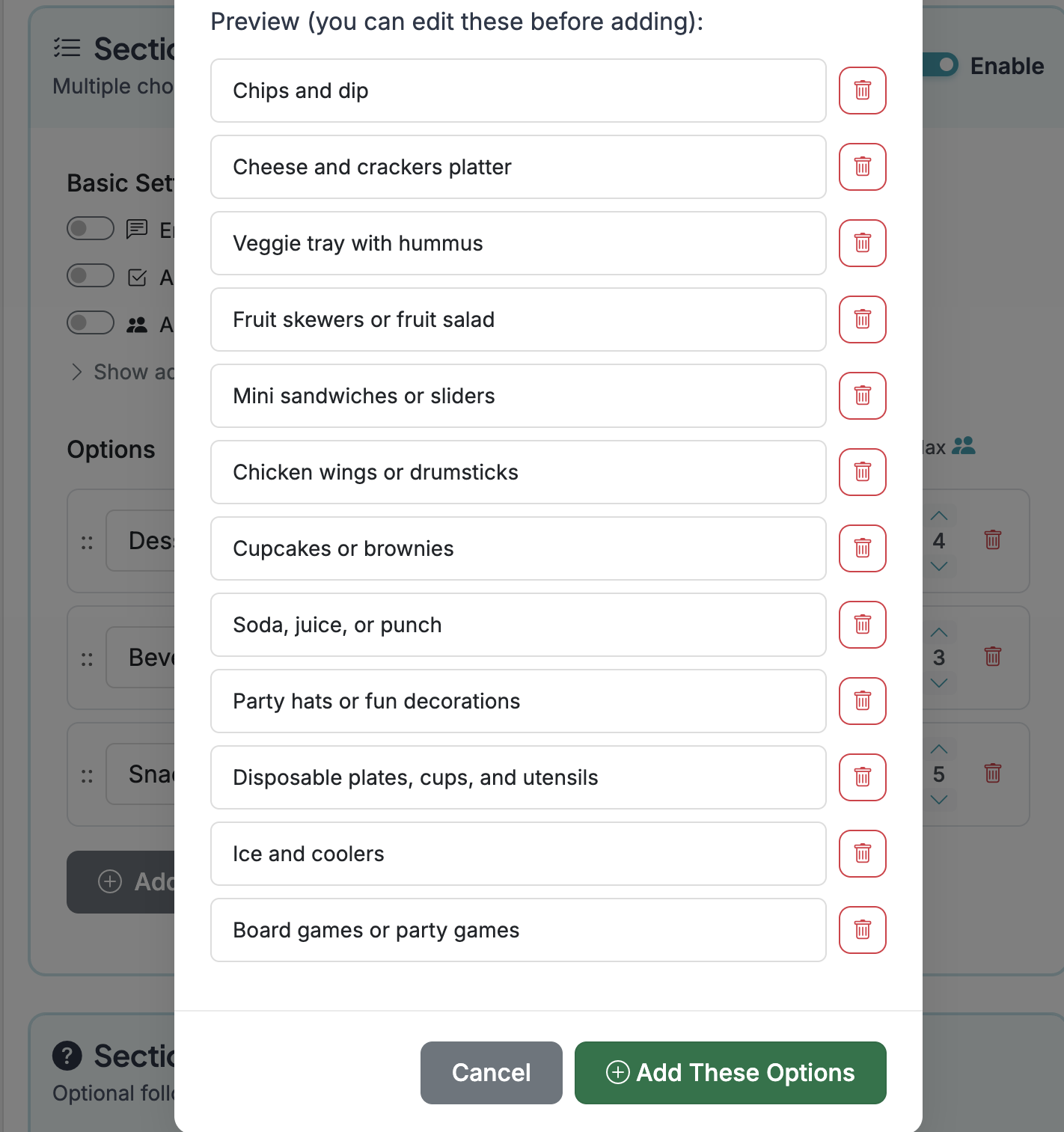
The AI will generate options and provide a preview you can add to your form.
6
Click on textarea
ADJUST OPTIONS IN BULK
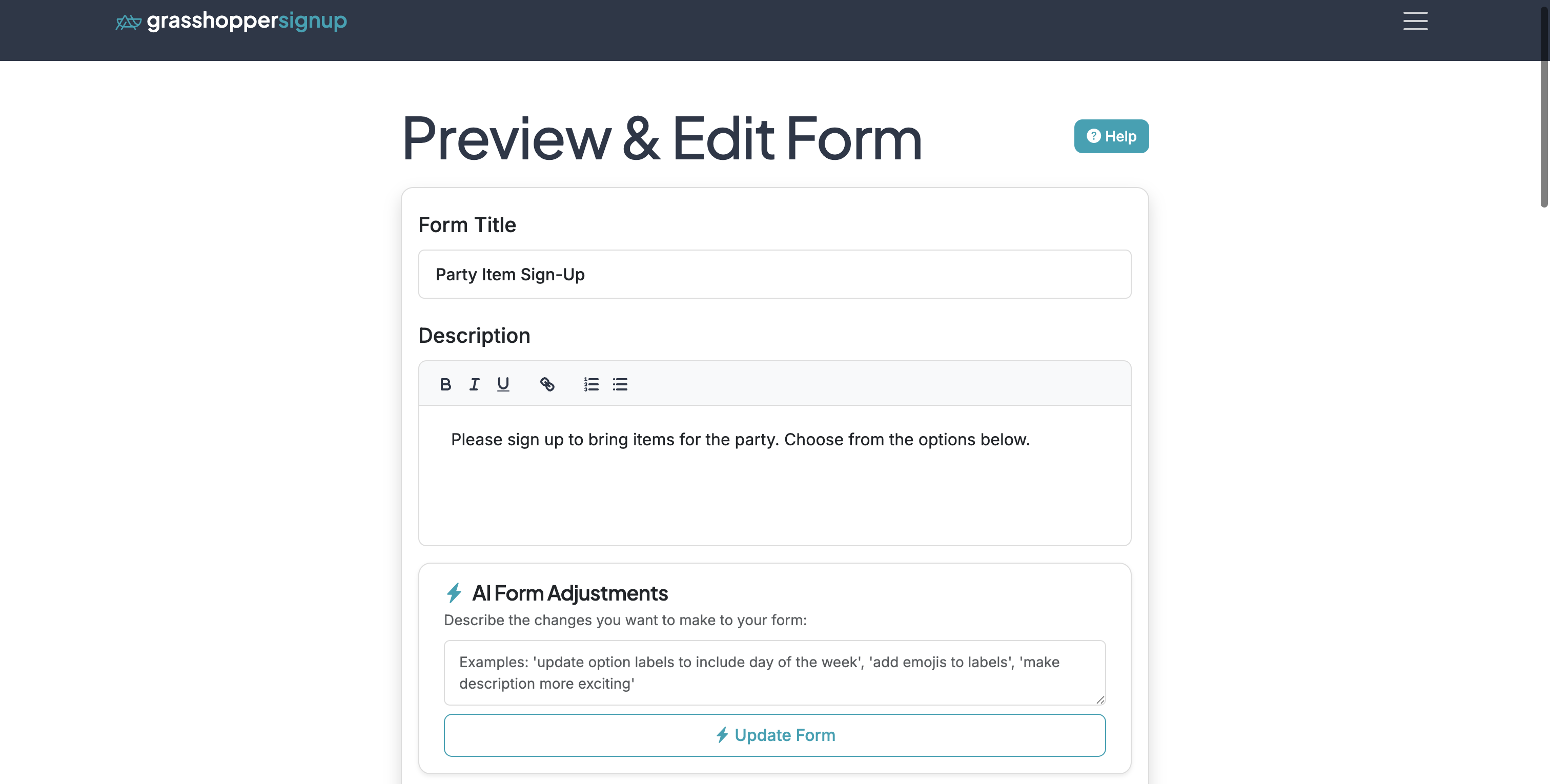
Use AI Form Adjustments to make bulk updates to form options.
1
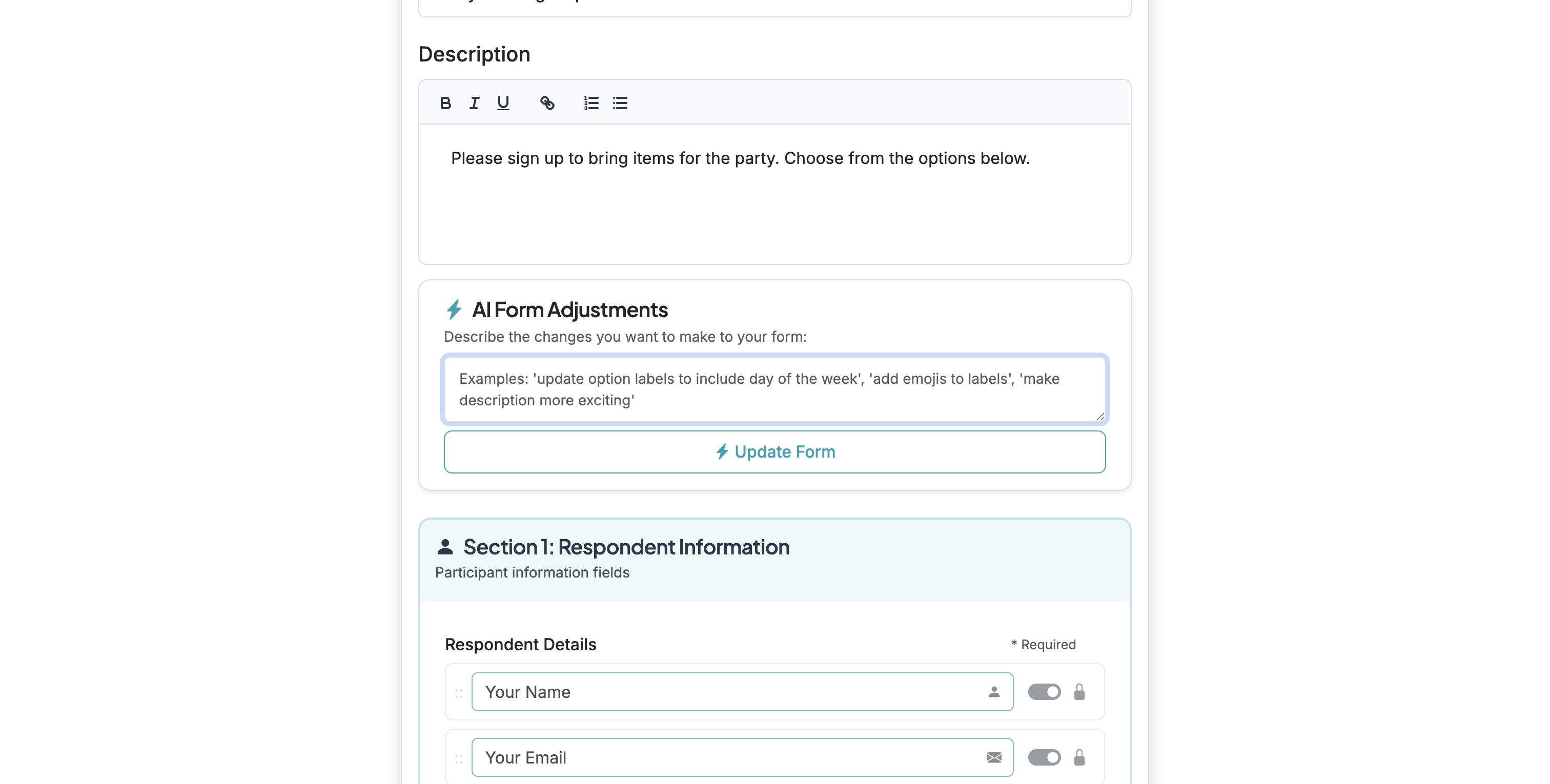
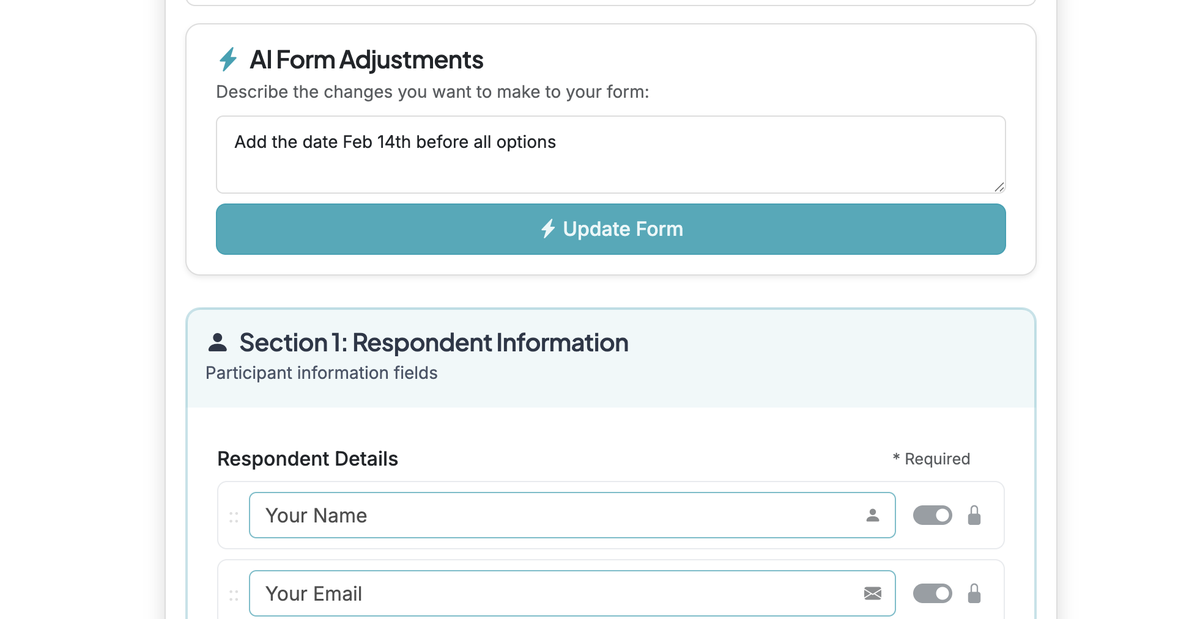
Scroll to the AI Form Adjustments section on the Edit page of your form. Type in a clear description of what you want to update for your form options.
2
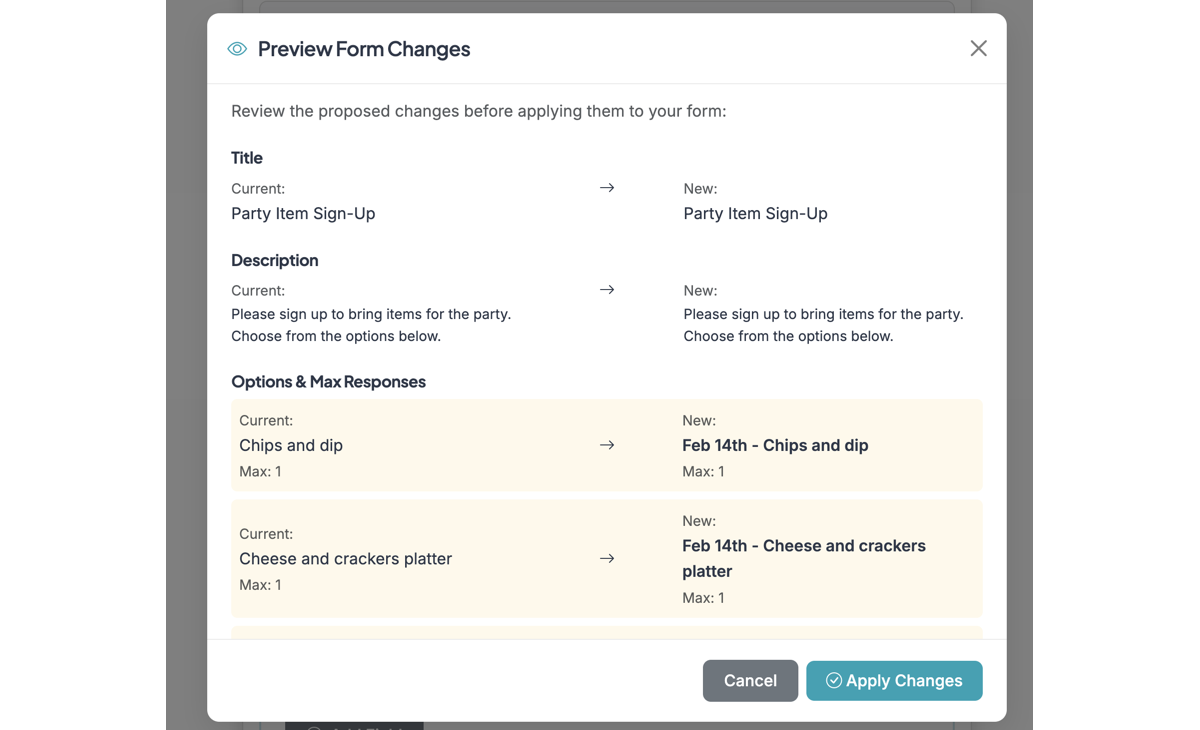
The AI will provide a preview of changes to your form to review before applying to your form.
3
After applying, all of your options will be replaced with the new adjustments. NOTE: Options are replaced (not edited) with new ones, so be cautious if you have existing responses on your form since they will no longer be connected to the new set of options.