This guide will show you how to set limits / max responses on options in your form. This also shows how to enabled quantity selection which allows respondents to add a quantity for their selection which is useful for adding things like number of guests, items for donation, etc.
This allows you to set a limit on the number of responses each option will collect.
1
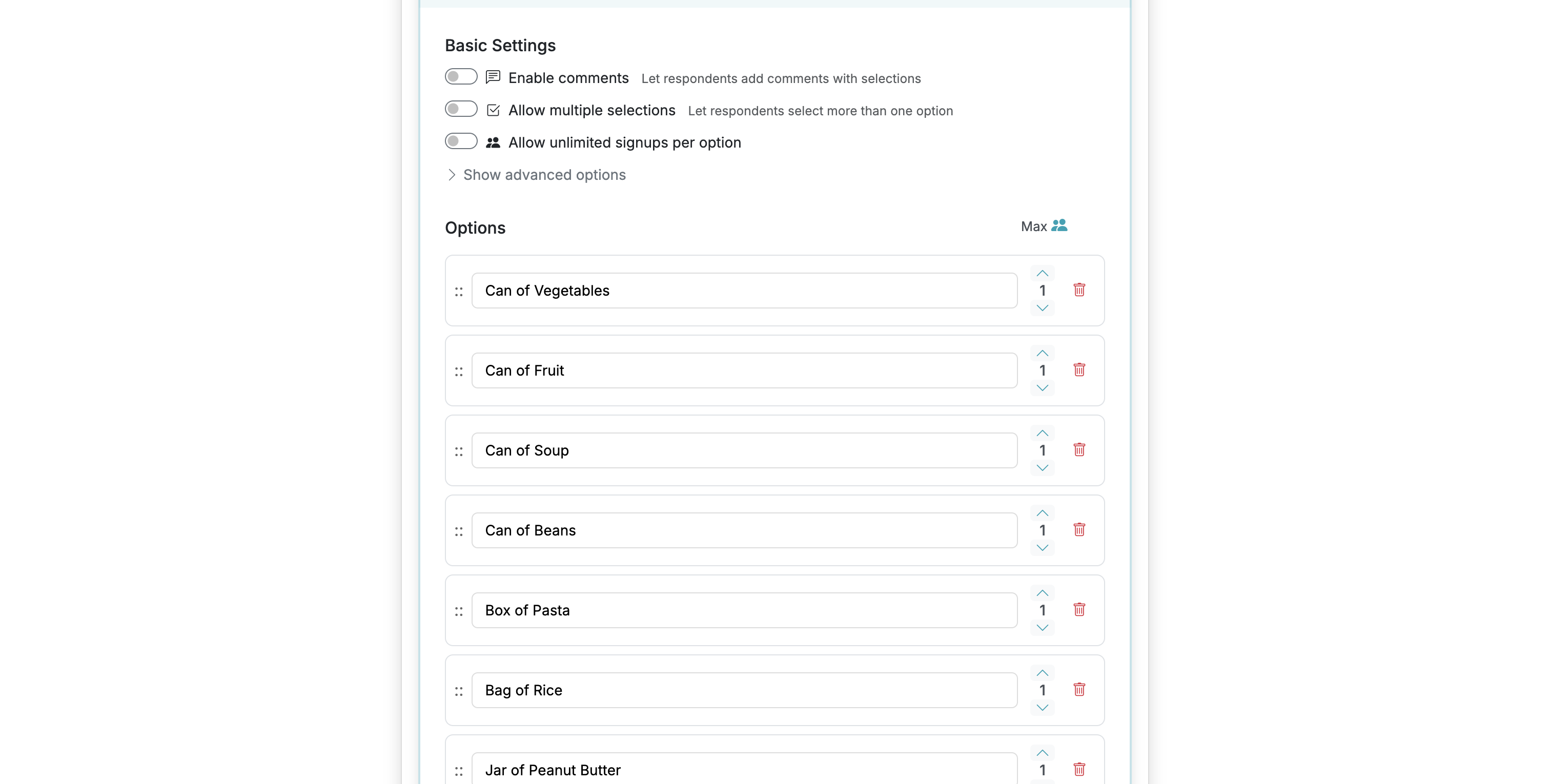
When creating/editing your form, each option will have a Max Response column that you can adjust. If you do not see this column, disable the 'Allow unlimited signups' toggle.
2
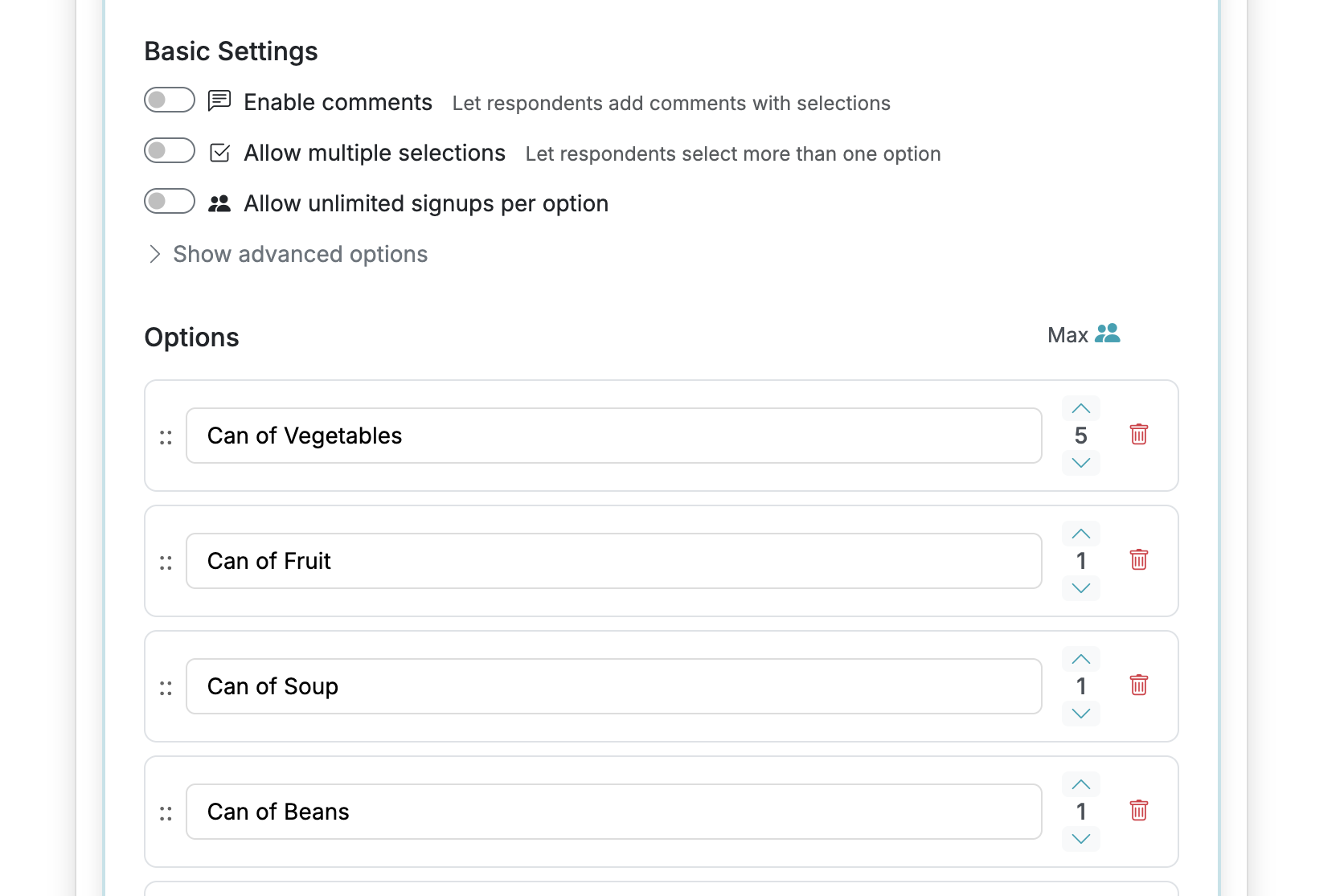
Adjust the Max Responses to increase/decrease the number of responses available for a given option.
3
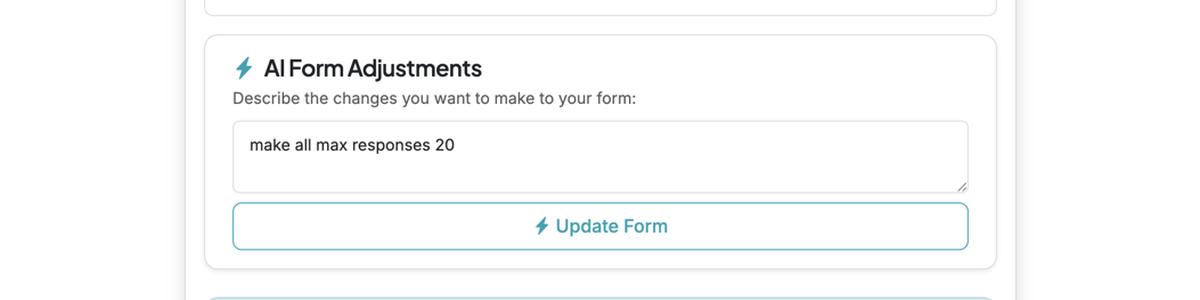
You can use the AI Form Adjustments to make bulk adjustments to Max Responses. Adjusting individual controls is recommended for small or individual item adjustments.
4
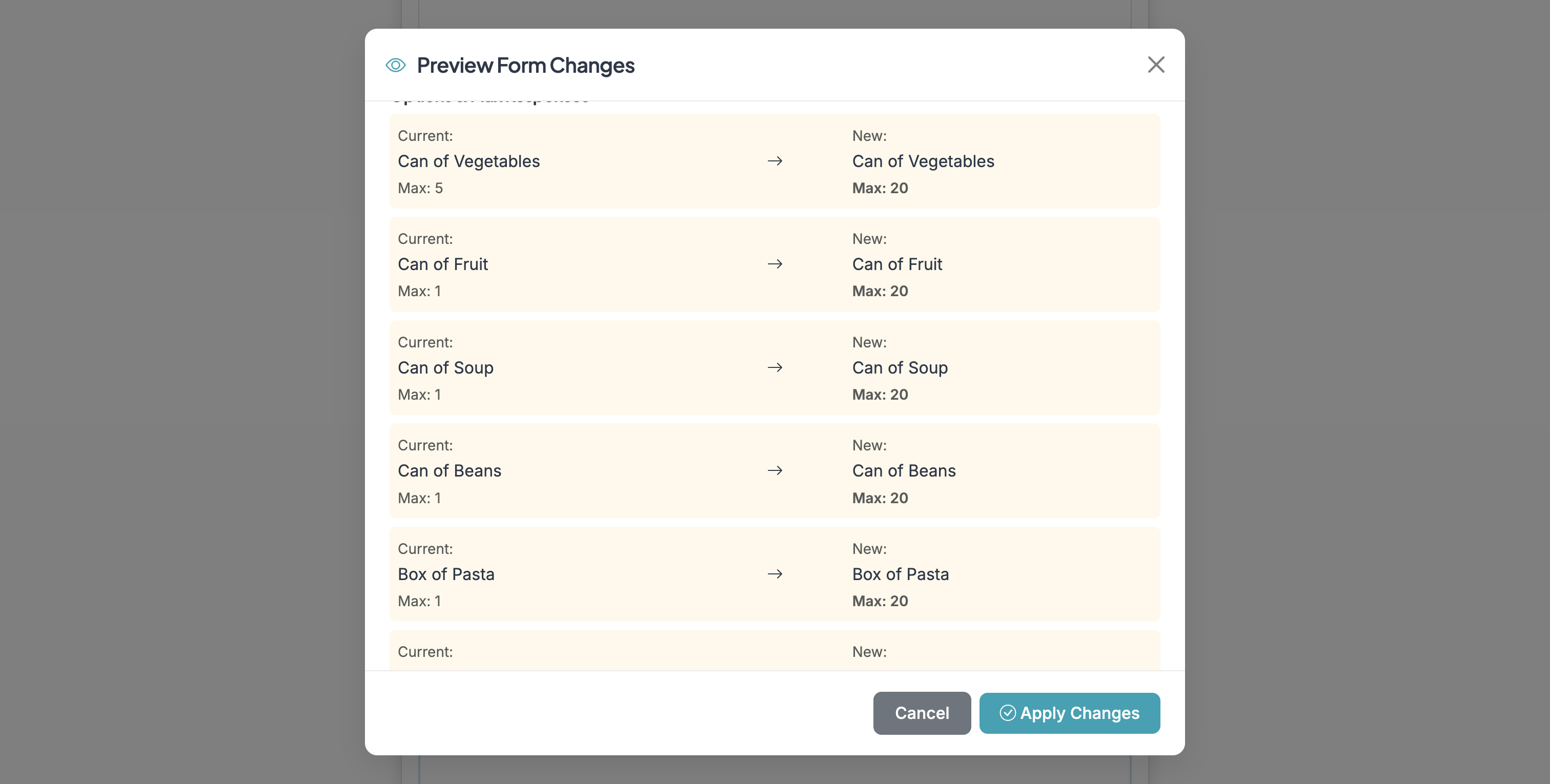
The AI Adjustments will provide a confirmation step on proposed changes.
ENABLE QUANTITY SELECTION
Allow respondents to pick quantities (e.g., number of guests or items) for an option.
1
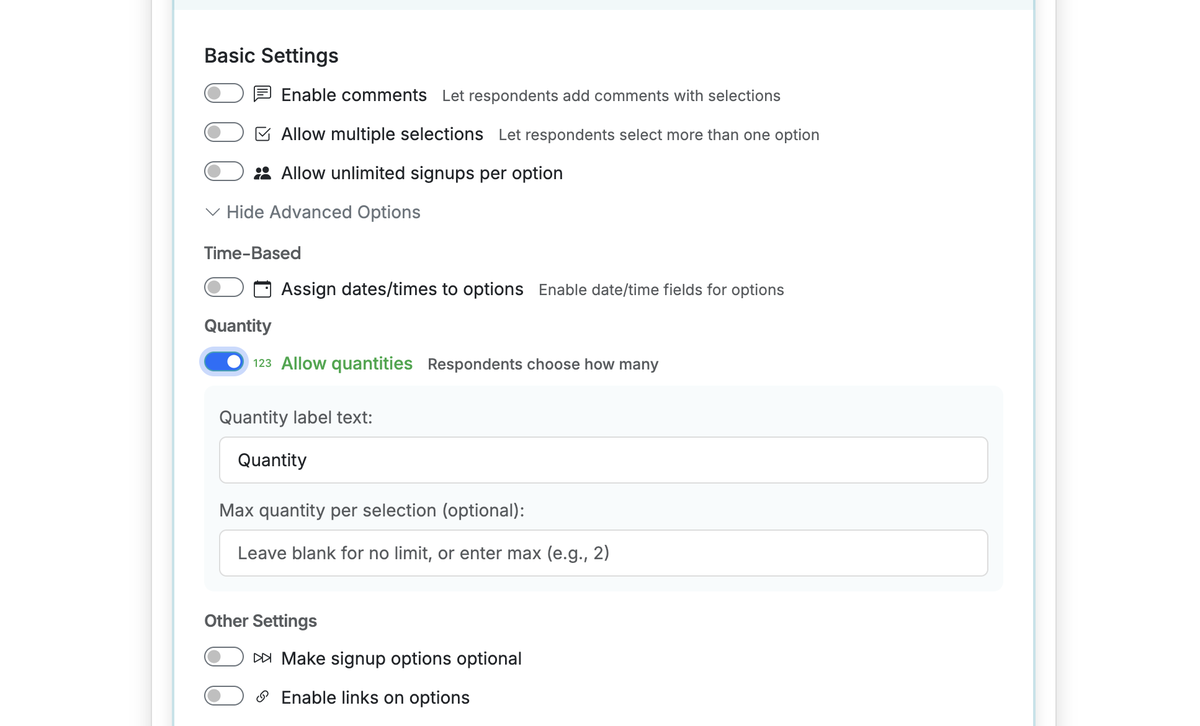
To enable quantity selection, click on 'Show Advanced Options' and 'Allow Quantities'. This will also provide some additional options for labels and max quantity per respondent.
EXAMPLE FORM WITH MAX RESPONSES AND QUANTITIES
1
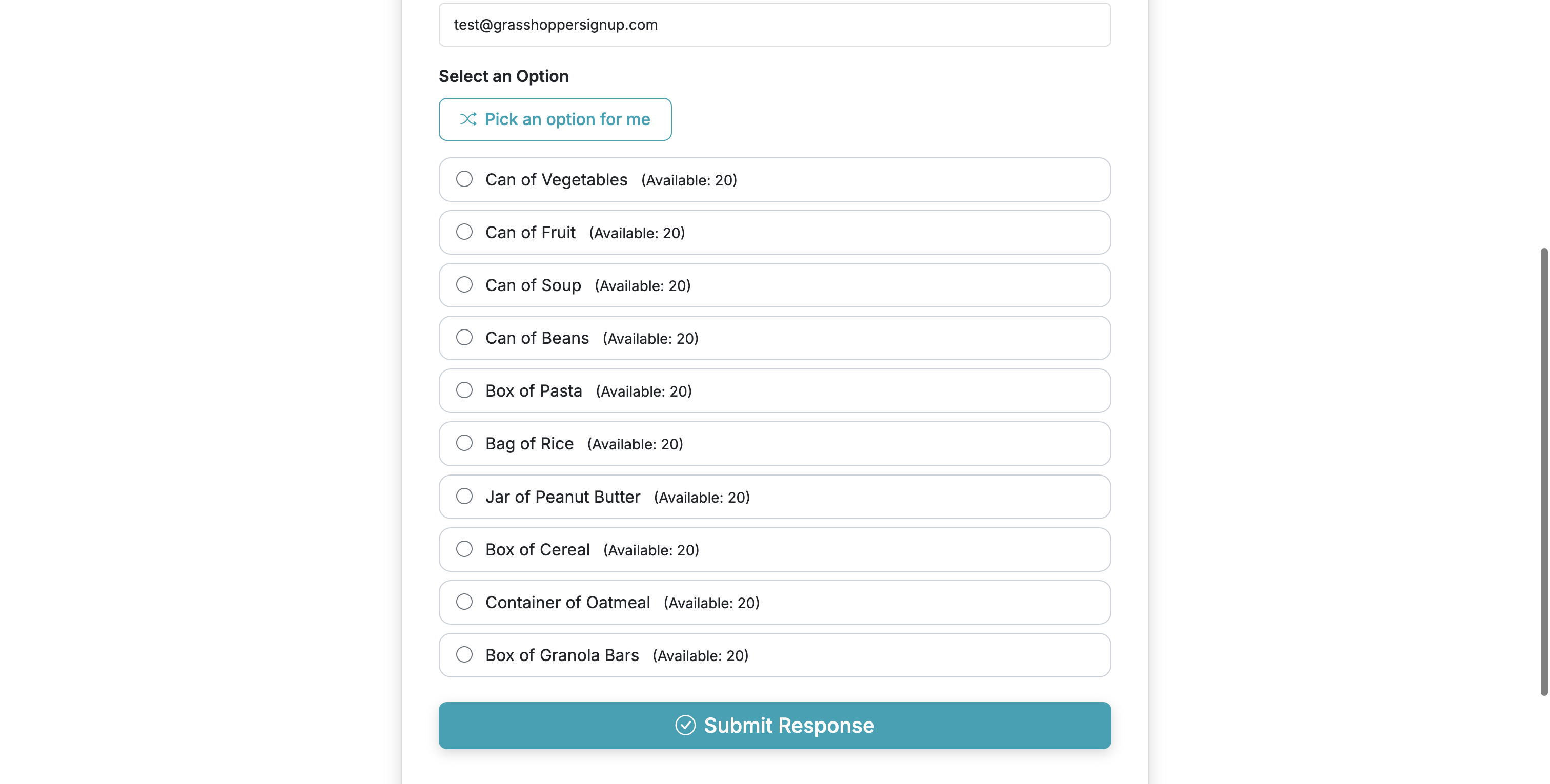
The options available will be shown on the form next to the option.
2
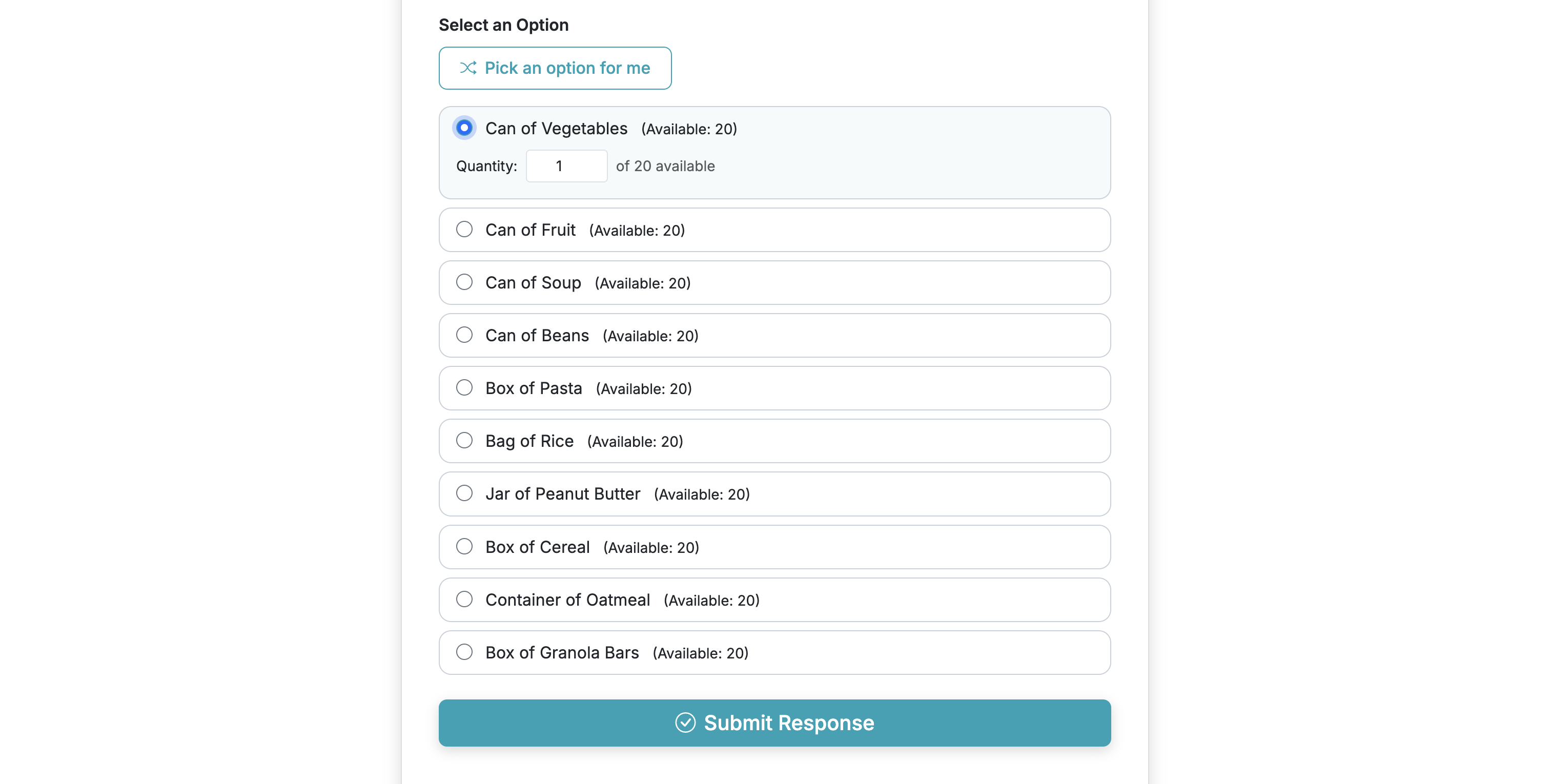
If quantities are enabled, respondents will be able to enter the quantity they plan to bring/provide.